
FMG Release Highlights
Exclusively for Home Office Staff
Latest Releases
FMG updates this section monthly to share some of the more significant releases and enhancements you may enjoy learning about.
Instagram Profile - 3/26/24
Many of our customers who use Instagram have requested the ability to link to their Instagram account from their website. We know Instagram may be an important player in helping advisors brand their business online, and we want to make it as easy as possible to help them increase visibility and engagement. That’s why we’re excited to announce that FMG website customers can now link to their Instagram pages on their websites by adding an Instagram icon to their website headers, footers, and email signatures. This feature will be available to all users whose Broker-Dealers have given the green light. If you're in the Retail program, you're already in the clear and can look forward to this update. This is just the first step towards a much bigger goal, which is integrating Instagram across our platform! Stay tuned for more updates.
How is the Instagram icon added to a website?
Our website customers can add the Instagram icon to their website from the FMG dashboard. Go to Profile > Social Media, and add the Instagram URL.
Does this update mean I can post to Instagram from my FMG dashboard?
This update does not enable direct posting to Instagram from your FMG dashboard. Adding the Instagram link feature is part of our preparation for a larger project to support Instagram integration in the future.
Scheduled Reminder Emails for Automations - 3/26/24
We just released a new email notification feature that enables your firm to send reminder emails to advisors using your custom-built email campaigns (agency email automations). This new feature enhances visibility and informs your advisors about upcoming automated emails. This update notifies subscribers about the email campaigns to which they're subscribed. All FMG customers who have activated the campaign will receive your reminder and can then review and pause the automation if they wish.
How does this work?
To send a reminder email to subscribers, Publishers would follow these steps:
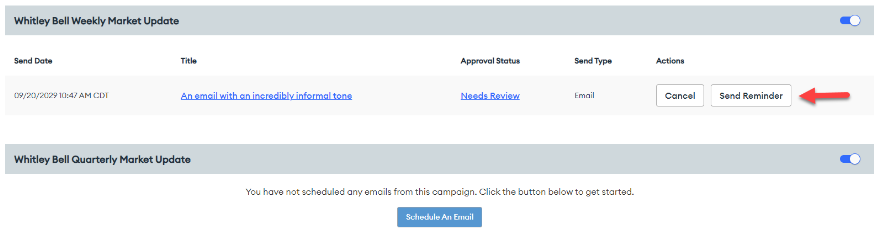
- In your FMG admin, navigate to ‘Manage > Automations’ on the left side of the dashboard.
- On the Agency Automations page, locate the specific automation you’d like to send a reminder to subscribers.
- Click the ‘Send Reminder’ button. This action will immediately trigger a reminder email to be sent to the subscribers who meet all the specified criteria.
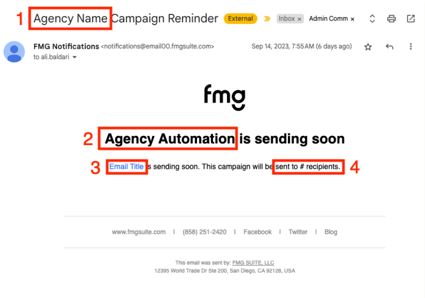
These emails will include all the details: Publisher name, Automation name, a hyperlinked email title that will take subscribers straight to the Content Library to preview the scheduled email, and the number of contacts in the selected Automation audience.
Email example:
- Publisher name (same name that is listed as the “Author” in the Content Library)
- Automation name (name of the automated Campaign)
- Hyperlinked email title (same title that appears in the Content Library): When subscribers click on this, they will be directed to the Content Library, where they can preview the scheduled email.
- Number of contacts in the user's selected Automation audience
Who can benefit from this new notification feature?
This feature will be enabled for all home office Publisher Admins who have access to send automated email campaigns. (Automations)
- Publisher Users can trigger reminder emails to send to subscribers for emails scheduled to be sent for Email Automation.
- Advisors will get an email notification that an automated campaign email is scheduled.
Can these reminders be scheduled ahead of time?
No, reminder emails cannot be scheduled ahead of time.
Is this new feature a requirement when using email automation?
No, this feature is optional.
Duplicate Contacts Feature - 3/6/24
Last year, we started a project to support subscribers' ability to add multiple contacts to the FMG platform that share the same email address (which we often refer to as “Duplicate Contacts”). We rolled the release out in waves to gather customer feedback. We are delighted to share that our rollout is complete, which means our final release of waves just went live. We now have a solution for duplicate contacts for the Salesforce and Wealthbox CRMs. In case you missed our update last year, we already have a solution for duplicate contacts for manual contact editing, CSV upload, and the Redtail and Ebix SmartOffice integrations. The solution for duplicate contacts allows subscribers to email each of their clients individually when sending personal messages like birthday greetings. This enhancement also enables duplicate contacts to be included in an email automation, but the system will only send one email to that shared address.
What specifically does this release solve for?
The solution for duplicate contacts supports the customer demand to email each of their clients individually when sending personal messages like birthday greetings.
- Duplicate contacts can have the same email address and last name but must have different first names.
- If duplicate contacts are included in an email automation, only the contact added first will receive the email.
- We don't yet have a way to designate a "primary" contact, but we're working on it.
- There's no limit to the number of duplicate email contacts you can have.
- All contacts that share an email address must have a unique first name.
How does an advisor take advantage of this new release?
The duplicate contacts will sync automatically if the advisor has an FMG integration with a supported CRM. If not, the advisor can add contacts with the same email address but with different first names by manually adding or importing them via CSV file.
Which CRM integrations work for the duplicate contacts solution?
Currently, the supported integrations are Salesforce, Wealthbox, MS Dynamics, Redtail, Ebix SmartOffice, and Guardian SmartOffice.
How can I find out more information on this release?
Here’s a helpful article you can share with your advisors.
Compliance Scheduled Emails Grid Update - 3/6/24
Home office Compliance Admins who do not currently have a bypass/pre-approved rule in place can now benefit from a new “Scheduled Emails” grid. This newly added grid is located at the top of the “Email Library” page within “Library Cases” in the Compliance workspace. The grid will help streamline workflows for Compliance Admins by helping triage the review process for new Email Templates and showing which Email Templates are being scheduled that require prioritization for review. Also, this update allows Compliance users to proactively and efficiently find duplicate case scenarios and cases associated with Library Content. Additionally, we are implementing an email notification system for Compliance Admins when new Publisher Automation Email content is pending review.
This applies to all Compliance workspace users but only applies to Publisher Automated Emails.
Why did we make this change?
These updates aim to improve the user experience for Compliance reviewers by providing a more efficient way to manage scheduled emails. Previously, when new, timely Email Templates were added to the Content Library, they were visible to all subscriber users before Compliance could review them. Due to the timeliness of these templates (like a Weekly Market Insights email), many proactive subscribers would schedule an email using the new templates before Compliance could pre-approve the library asset. We also wanted to help the Compliance Admins proactively and efficiently find duplicate case scenarios and cases associated with Library Content.
What if I cannot find the Scheduled Emails grid?
If you are a Compliance Admin who cannot see this release, your program may have email compliance bypass set up. We plan to update these Compliance Admin accounts in a future release. Please stay tuned!
What kind of scheduled emails will populate in the Schedule Emails grid?
Only scheduled emails pertaining to Publisher Automations, which are email templates created by a Publisher Admin, and set up for scheduled or automatic delivery as part of automation, will appear in this grid. The grid only shows emails scheduled to be sent and not yet pre-approved.
Enhanced Compliance Case History Grid - 2/22/24
Experience the power of our enhanced Compliance History grid, designed to simplify the compliance post-review process. The enhanced Compliance Case History grid now includes advanced search options, improved navigation features, and user-specific filtering. This update will provide a straightforward view of the case history changes, saving time and increasing efficiency.
The new grid includes:
- Sorting Options: You can now sort by various criteria, such as subscriber, date, compliance case number, case title, and case type.
- Filtering Options: Filter by compliance case type using the "Case Type" dropdown.
- Search Options: Locate cases based on the subscriber's name or public ID. Find cases using keywords related to the case number, case title, case type, and case note keyword.
- Date Limitation: Refine search results by selecting specific start and end dates, limited to 90 days at a time.
- Clickable Compliance Case Numbers: Quick access to case details through clickable hyperlinks.
- Accessing the New Grid: You can access the new Compliance Case History grid via a new menu item in the left navigation bar under Advisors, labeled "Case History." In addition, the grid can also be accessed from the "View All" Active Subscribers page, where a new "View History" option is now available in the Action dropdown menu for each active subscriber.
Enhanced Forms Library Options - 2/21/24
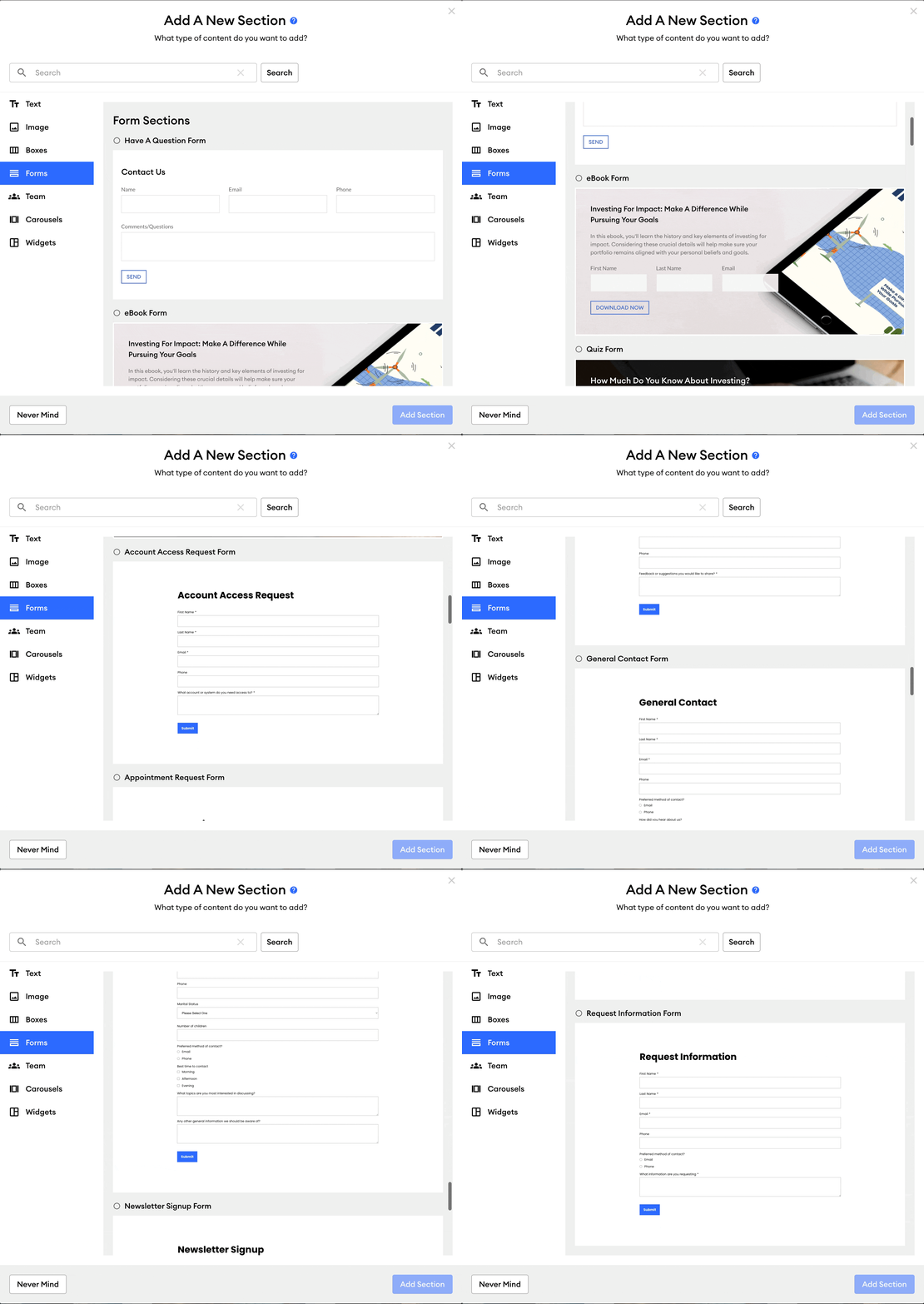
Brand new website forms are now available! We recently enhanced our offering to include brand-new forms that customers can easily add to their FMG websites. These new forms give FMG website customers more options for website visitors to reach out, blending seamlessly with the existing branding of the advisors' websites. Our new forms include the following: Appointment Request, New Client Questionnaire, Feedback, Newsletter Signup, Join Our Mailing List, Information Request, Account Access Request, and a General Contact Form.
How do the new website forms work?
A website customer can find the new form within their website editor and add the section to their website. These forms align with the advisor's existing branding, promoting a consistent and smooth user experience akin to our commitment to enhancing user interaction.
When a website visitor fills out the form, the response is fully integrated with FMG's inbox, email notification, and contact systems. Our website customer will receive an email as a form notification containing the data entry details. Additionally, each new contact is added to the contact list in the FMG admin account and identified as a web contact form source. The forms are equipped with standard validation, robust security, and anti-spam measures, ensuring the secure and efficient collection of visitor data.
Please note: Currently, the option to export the form data from within the FMG admin is not possible. However, this is an enhancement we are considering for the future. Also, our web forms are not customizable, as they are designed to cater to the most common use cases. For unique form needs, we recommend using a third-party form solution.
Where can I locate the newly available form sections?
The new sections are in the website customer's visual editor. When creating or editing a page, you can access these sections by clicking "+ Add Section." In the pop-up modal for "Add A New Section," you’ll find the new forms within the “Forms” category on the left menu.
Our Social Foundations campaign has a new look and additional functionality to improve the user experience and make managing social media campaigns easier and more efficient. Social Foundations is a social media campaign located under Automated Marketing. Enhancements include an improved UI, navigation, enhanced scheduling, and social post-management capabilities. These changes can only be seen by customers with access to this campaign as part of their package.
Overview of changes:
NEW - Manage Schedule Button: We have a new 'Manage Schedule' button which streamlines user navigation to the 'Your Content Schedule' page, allowing users to manage social post topics, view upcoming posts, and shuffle them.
NEW - ‘Supercharge Your Social Media’ Section: We added resources for mastering social media, which link to FMG’s YouTube Channel and Knowledge Base.
NEW - ‘Upcoming Post’ Section: We added the date the upcoming post will be published, a preview of it, and icons indicating which social network(s) the social post will be posted to. It also includes a 'Replace Post' button.
UPDATED - Latest Activity Section: We’ve improved this section to include a search bar, headers for sorting, filters for 'Rows per page,' and navigation arrows.
-3.png "Untitled design (4)-3")
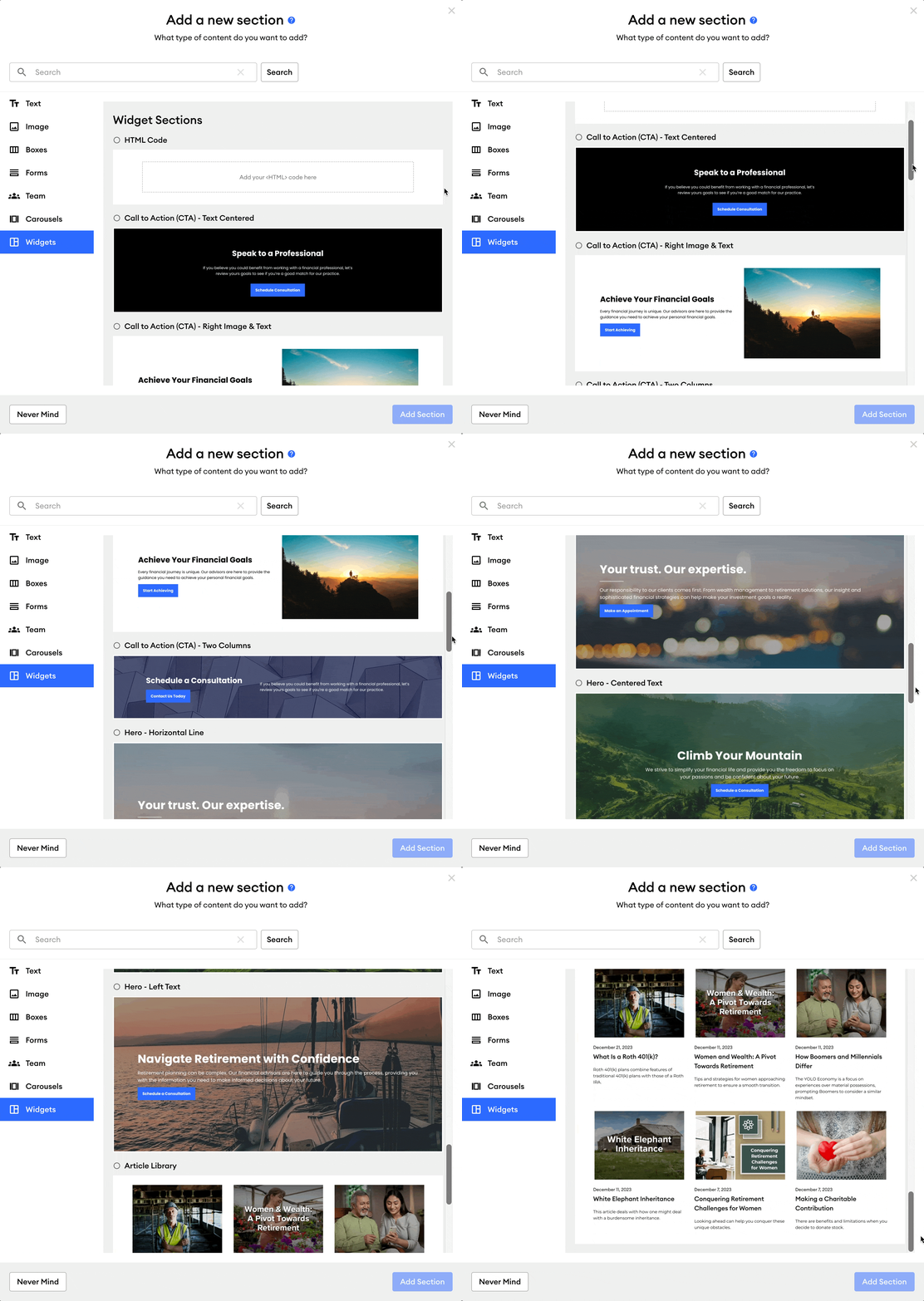
FMG website customers can now benefit from a more intuitive and user-friendly website editor with the addition of new website sections! These customizable website sections can be added to existing FMG websites or used when building one. This update is designed to expand options, increase flexibility, and enable our customers to craft modern, aesthetically pleasing web pages and layouts effortlessly. New website customers, and existing website customers on our most recent website framework, will have access to this new feature. This will be a continuous rollout, and we plan to release new sections quarterly. Check back here for the updates!
Where can I locate the newly available sections?
You can find the new website sections in the website editor. When creating or editing a page, you can access these sections by clicking "+ Add Section." In the pop-up modal for "Add A New Section," you’ll find the new sections throughout the different categories on the left menu.
How does this help me?
It will make starting a new website or maintaining your existing one easier.
How will these new sections align with compliance requirements?
Like our existing sections, all newly added sections will be incorporated into compliance cases and website archives.
Check out some examples here!
Looking for Customer-Facing Release Updates?
Check out our Suite New Releases page linked below.
Tip: You can always find the link to this page on the main page of our Knowledge Center (upper right > New Releases).