
FMG Release Highlights
Exclusively for Home Office Staff
Latest Releases
FMG updates this section monthly to share some of the more significant releases and enhancements you may enjoy learning about.
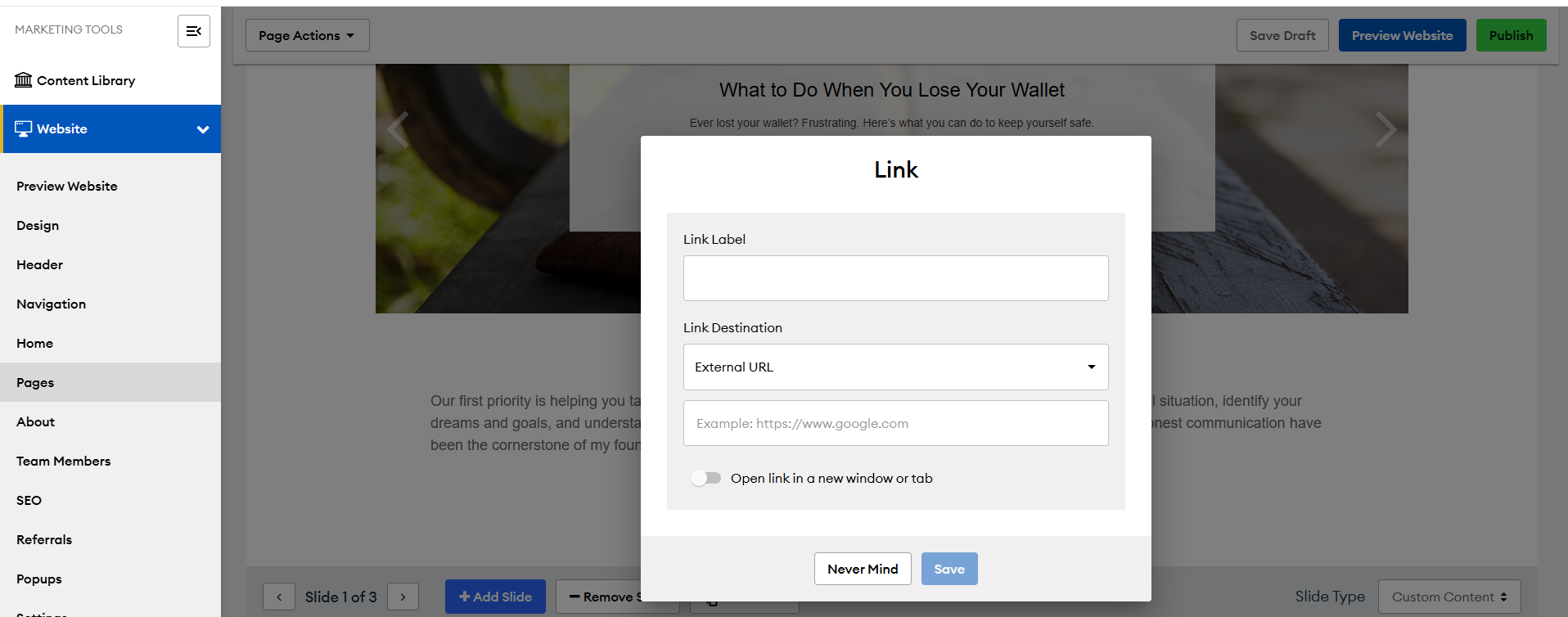
Website Editor: Easier Linking for Team Members and Site Pages - 6/30/26
For FMG website users, the website editor now includes direct drop-down selection for team member bio pages in website buttons and navigation, removing the need for advisors to manually locate and copy URL slugs. This functionality has also been extended to inline text links in the Website Sectional Editor. These updates are available to all website subscribers, including those on legacy subscription packages, and are accessible across all website themes.
What's Changing?
-
Button Destination: Team Members. A new "Team Members" category is available in the Button Destination drop-down for buttons inside Button, Boxes, Images, and Text Headline / Paragraph(s) / Button sections. Advisors can select a team member directly from this drop-down to link a button to a bio page without manually entering a URL.
-
Website Navigation: Team Member Drop-Down. When adding a new navigation item, advisors can select Link To > Team and choose a team member from a drop-down. The URL slug format remains unchanged (/team/{team-member}), and any team member links previously added by manually entering a URL will continue to work without modification.
-
Link Editor Drop-Down for Website Pages. The Link Editor in the Website Sectional Editor will support drop-down selection for custom, system, synced, and Resource Center Pages. This applies to the Website Sectional Editor only and does not extend to Blog, Email, or other editors that use a separate rich text editor.
Common Questions:
Do these changes affect team member links that advisors already added manually? Any team member links previously created by entering a URL directly will continue to work as expected. No advisor action is needed to preserve existing navigation items.
Are there any home office-level controls or compliance implications for these updates? These are editor-level enhancements with no home office configuration requirements and no changes to compliance workflows or content controls.
Does the Link Editor update apply to all editors in the FMG platform? The drop-down link selection experience is specific to the Website Sectional Editor. Blog, Email, Events, and other editors that use a separate rich text editor are not included and will retain the current manual URL entry experience.
For additional details, visit the FMG Help Center:
Google Tag Manager: Program-Wide Tag and Consent Management - 6/30/26
For firms operating under international privacy laws, including GDPR, UK GDPR, Quebec Law 25, and PIPEDA, managing cookie consent and tracking compliance across every advisor website just got significantly easier. Home offices can now do this from a single setup, rather than configuring each site individually. Google Tag Manager (GTM) is a tool that controls which tracking and consent scripts run on a website, bringing that control to the program level. Once enabled, your firm shares a single ID with FMG, which applies automatically to every advisor site in your program, including any sites added later. It works across all website themes, including FMG legacy websites. To get started, contact homeofficesupport@fmgsuite.com.
What's Changing?
-
Single-entry deployment: One GTM Container ID applies to every advisor website in your program. FMG handles the setup on our end, no configuration needed, site by site.
-
Home office-managed workspace: Your firm manages all tags, including your chosen Consent Management Platform (CMP), inside your own Google Tag Manager account. FMG does not access your workspace.
-
Advisor tag compatibility: Any advisor-level GTM tags already in place continue to run in parallel. Your program-level tags do not override existing advisor configurations.
-
Optional GA Consent Mode: A separate toggle ensures Google Analytics only tracks visitors who have consented, rather than tracking all visitors by default. Recommended for programs serving audiences in Europe, the UK, or Canada.
Key Benefits:
- Extend compliance coverage across every advisor website from a single configuration, with automatic tag application on any new sites added to your program after enablement
- Support international privacy law obligations by deploying your firm's preferred Consent Management Platform (OneTrust, Cookiebot, Termly, or others) consistently across your entire advisor network.
- Maintain advisor workflow continuity by running program-level tags alongside any existing advisor-level GTM setups without conflict or override.
- Enable consent-based analytics tracking with the optional GA Consent Mode toggle, ensuring Google Analytics respects visitor cookie preferences in regulated regions.
Common Questions:
How do we request enablement? Contact your home office support team at any time, including during implementation if you are a new enterprise. You will need to provide your GTM Container ID. FMG applies the container on our end, and your GTM workspace remains fully under your firm's control.
Does this replace the FMG cookie disclaimer banner released earlier this year? The two features serve different purposes and operate independently. The FMG cookie disclaimer banner is an informational notice for US state privacy laws and does not include accept/reject controls for website visitors. Program-level GTM support enables your firm to deploy a full Consent Management Platform with accept, reject, and customize controls for international privacy law compliance. If your firm deploys a CMP banner through GTM, FMG can disable the FMG cookie disclaimer banner at the program level to prevent both from loading on the same site.
Does FMG provide the Consent Management Platform? No. Your firm selects and manages its own CMP (such as OneTrust, Cookiebot, or Termly) within your GTM workspace. FMG provides the deployment channel, not the consent tool itself.
What happens to advisor sites if a user migrates to a different broker-dealer? Tags follow the program or reseller hierarchy. After a B/D migration, the advisor's site loads the GTM container configured for their new program. If the new program does not have GTM support enabled, only the advisor's own site-level GTM tags, if any, will apply.
Does this affect site performance? The GTM container ID itself is lightweight. Any performance impact depends on the tags and scripts your firm chooses to load through your GTM workspace.
Automated Marketing: Financial Focus Replaces Video of the Month- 8/24/26
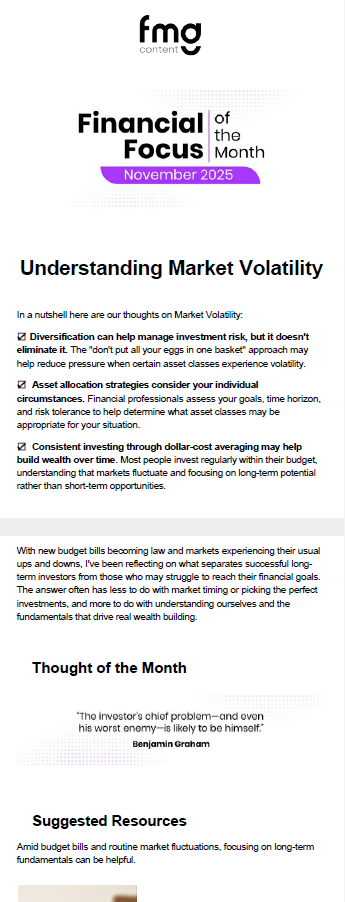
Soon, FMG's Video of the Month automation will be replaced by Financial Focus, moving from a single monthly video to a richer, newsletter-style email featuring a curated mix of videos and articles. Any Marketing Suite customer with Video of the Month currently activated will transition automatically, with their existing audience carried over — the new automation will be live in their Automated Marketing section, with the first send occurring in August. Note that the send date will shift from the third Tuesday to mid- to late month.
What's Changing?
Key differences between Video of the Month and the new Financial Focus automation:
-
Format: Financial Focus delivers a newsletter-style email each month featuring a curated mix of videos and articles from the FMG Content Library, rather than a single featured video.
-
Compliance review: Unlike Video of the Month, which was sent based on individually pre-approved Web Content, Financial Focus requires home office compliance teams to review and approve the full email each month before it sends. This is the same workflow already in place for all other agency automations.
-
Send timing: Financial Focus sends mid- to late-month. The exact date may vary month to month to accommodate the compliance review window. Content will be available to compliance teams 4 to 6 weeks before each scheduled send.
-
Stats page: The Video of the Month automation included a stats page. Financial Focus does not include a dedicated stats page, consistent with all other agency automations. Advisors can review sent email performance in the Email section of their account, under Sent and Scheduled.
-
Seamless migration: Advisors with Video of the Month toggled on will have Financial Focus automatically enabled, with their existing audience carried over. Advisors with access but VOM toggled off will find Financial Focus available in Automated Marketing, but it will not be turned on without their action.
Key Benefits - User:
- Deliver a richer, more professional monthly touchpoint — Financial Focus gives advisors a newsletter-style email with a curated mix of videos and articles that reflects how effective client communication works today.
- No action required for active users — advisors with Video of the Month currently enabled will find Financial Focus automatically turned on with their existing audience intact.
Key Benefits - Home Office:
- Strengthen compliance oversight — Financial Focus requires monthly review and approval of all emails before they are sent, giving your team full visibility into what reaches contacts. This is the same process already in place for all other agency automations.
- Preserve program-level controls — any existing restrictions or exclusions from Video of the Month carry over to Financial Focus automatically, so your program's boundaries are respected from day one.
Common Questions:
Which subscription packages include Financial Focus? Financial Focus is included in Marketing Suite Premium, or available as an add-on to Marketing Suite Essential. Advisors on select legacy Marketing packages may also have access. If an advisor already has access to the Video of the Month, then they will receive the Financial Focus Automation. Advisors with access who haven't yet activated it will find it ready to turn on in their Automated Marketing section within their FMG account.
How will Financial Focus emails be identified in the sent history? Emails sent through the Financial Focus automation will appear in the Email > Sent & Scheduled section with the automation name clearly labeled in the subject line, formatted as: Financial Focus | [Email Title].
Will our existing program exclusions carry over to Financial Focus? Yes. Any program-level exclusions applied to the Video of the Month automation will carry over automatically to Financial Focus. Users in excluded programs will not have the new automation enabled.
What does the compliance review process look like for Financial Focus? Each month, the Financial Focus email will appear in your compliance review queue 4 to 6 weeks before the scheduled send date. Your team will receive an action-required notification to review and approve it using the same workflow already in place for all other agency automations. If the email is not approved before the send deadline (approximately 24 hours prior), it will not be sent to advisors in your program that month.
What happens if a piece of Web Content featured in the email is restricted or unavailable for a specific advisor? If any piece of Web Content in the Financial Focus email is unavailable to an advisor, whether because the advisor has hidden that content, turned off a content category, or the home office has restricted a specific piece, the email will not send for that advisor. This protects users from sending emails with broken or missing content links.
Will advisors lose access to their historical Video of the Month performance data? Yes. Once the Video of the Month automation is removed from a user’s Automated Marketing page, its historical send stats will no longer be accessible. Users can review ongoing email performance, including Financial Focus sends, in the Email section of their account under Sent and Scheduled. Financial Focus emails will be identifiable by their subject line format: "Financial Focus | [Email Title]."
Can advisors still send the Financial Focus email if their home office does not approve it in time? Yes. Financial Focus emails are made available each month as standalone emails in the Content Library. If a home office does not approve the automation before the send deadline, advisors can still send the email manually from their account.
Email Domain Verification: Automated Verification Now Covers All Advisor Domains- 6/9/26
Last October, FMG made significant improvements to how advisor email domains are verified and monitored — automating checks that previously required manual action. We've since extended that coverage to include all advisor sending configurations, including those common in enterprise environments with shared firm domains. No action is required from your home office or advisors.
A subset of advisors at enterprise home offices, specifically those sending through a shared firm domain rather than an individual domain, were excluded from the October 2025 automated checks due to a technical limitation at the time. That limitation has since been resolved by FMG's email delivery provider. Those advisors now receive the same automated monitoring as everyone else.
The October release introduced automated nightly checks across FMG's email domain verification system. Before that update, domain status could fall out of date without anyone knowing, which risked email delivery issues for advisors. The October release resolved that by automating status checks every 24 hours, adding fallback protection if a domain falls out of good standing, and reducing the manual steps home offices and advisors previously had to take. For full details on how the system works, review the October 2025 release.
FMG Testimonials: Unified Compliance Review - 6/2/26
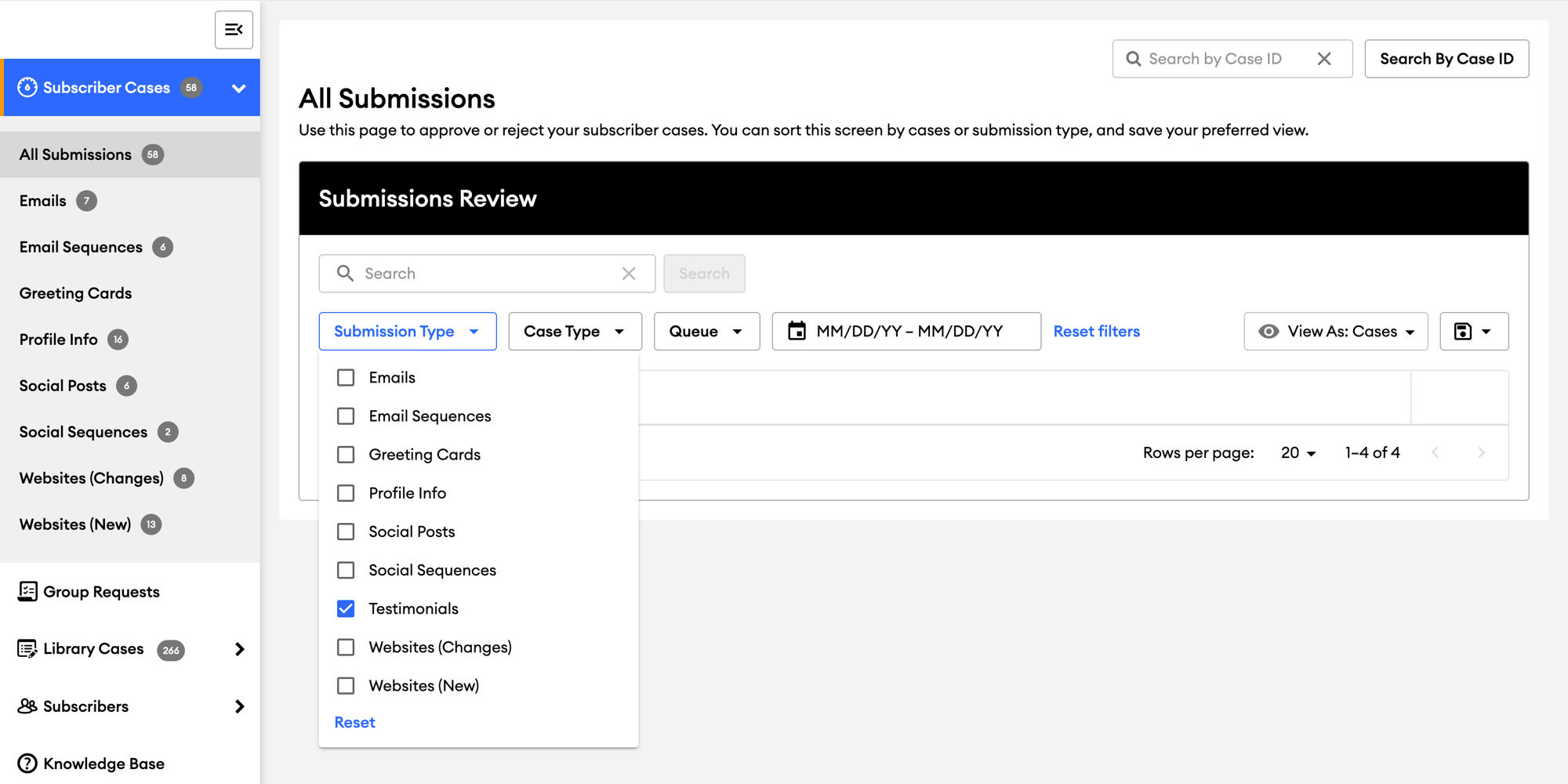
Testimonial compliance review is now built into FMG Compliance Admin. For broker-dealer programs that have approved FMG Testimonials, advisor testimonials, campaigns, and website widgets now automatically route into your existing compliance queue; no platform-switching, no separate workflow, no missed cases. Your compliance team reviews everything the same way they review all other FMG content. The integration is available by request. If your program has already approved FMG Testimonials, contact homeofficesupport@fmgsuite.com to get set up. If testimonials aren't yet approved at your firm, this is a great time to take a closer look, and we're happy to answer questions or walk you through a demo.
- a) Testimonials: Individual client testimonials collected by advisors
- b) Campaigns: Testimonial request campaigns sent via email or form
- c) Widgets: Testimonial display widgets embedded on advisor websites
Each submission is labeled by type in the All Submissions Grid and is clearly identified as originating from FMG Testimonials within the case detail view. Compliance officers use the same review actions already available for all other FMG content: approve, reject, add notes, apply tags, and download.
Status decisions made in FMG Compliance Admin are automatically sent back to FMG Testimonials, so advisors see their case status updated without any manual communication from your team. If an advisor archives content in FMG Testimonials before a decision is made, a retraction is sent automatically, and the case is removed from the queue.
Not included in this release:
- Version history and revert: FMG Testimonials does not maintain a history of previously approved versions. Advisors who need to revise a pending submission must archive and resubmit.
- Historical content migration: Only new submissions from the point of enablement forward will appear in FMG Compliance Admin.
- Bulk approvals and case grouping: Each submission is treated as an individual case. These capabilities are under consideration for a future phase.
Key Benefits:
- Centralize compliance review for all advisor marketing content in one queue, with no platform-switching required
- Reduce operational overhead for compliance teams managing testimonial, campaign, and widget submissions alongside all other FMG content
- Maintain existing compliance workflow, controls, and review actions with no retraining required
- Strengthen advisor compliance coverage by ensuring testimonial content is subject to the same review infrastructure your team already relies on
Common Questions:
Is this enabled automatically? No. Broker-Dealers that have approved FMG Testimonials for use with their advisors will have the option to enable the Compliance integration in FMG. For those who have not approved Testimonials, it is not be enabled. Reach out to home office support if you would like to learn more or get a demo.
What does our compliance team need to do differently? Nothing. FMG Testimonials submissions will appear in your All Submissions grid, filtered by type: Testimonials, Campaigns, or Widgets. Your team reviews them using the same actions they use for all other FMG content. No new workflow is required.
What happens if an advisor doesn't have an FMG account? A shell account is created for the advisor during setup. This is handled through FMG's fulfillment process, with no action required from your compliance team. These advisors will not have access to FMG or its tools.
Is there a cost for this integration? For broker-dealer programs, early adopters are currently being onboarded at no charge. A one-time professional services setup fee will apply in the future. Contact homeofficesupport@fmgsuite.com for details.
What will happen to content previously reviewed in FMG Testimonials' Compliance Hub? Historical content is not migrated. The FMG Compliance Admin queue will reflect new submissions from the point of enablement forward. Previously reviewed content remains in FMG Testimonials' records.
Questions or ready to enable? Contact homeofficesupport@fmgsuite.com
Content Library: Smarter Search with Natural Language - 6/1/26
Marketing Suite users with Content Library access can now find the right approved content faster and more reliably with Natural Language Search, an AI-driven search enhancement that understands what you're looking for even when the wording doesn't match exactly. This update improves how advisors and support teams discover content by recognizing variations in terminology, phrasing, and abbreviations, so the most relevant results rise to the top every time.
- Improve Content Discovery: Users can find relevant content faster using conversational language, reducing time spent guessing keywords or submitting support requests.
- Reduced Keyword Guessing: Eliminates the frustration of missing content due to inconsistent terminology, such as "401k" versus "retirement plan."
- Improved Accuracy: Search results are based on semantic relevance, so the best matches surface first.
- Seamless Integration: Enhances your existing search experience without requiring any new navigation or complex training.
- Maintains compliance integrity: The search results surface only content each user is authorized to access, with no impact on Publisher or Compliance workflows.
How Does It Work?
.gif?width=900&height=506&name=CurrentContentLibrarySearch%20(1).gif "CurrentContentLibrarySearch (1)")
- Natural Language Processing: The system identifies the financial topic and the purpose of a user's request to provide accurate results, even if their exact words aren't in the content's metadata.
- Conversational Queries: Users can type full questions or descriptive phrases directly into the existing search bar.
- Refined Filtering: Users' existing filters (topic, author, category) continue to work alongside the new search layer to help them narrow results.
- Permission-Based Results: The system only surfaces content that users are already authorized to see, maintaining all current compliance and home-office permissions.
Common Questions:
Does this replace the previously used keyword search? No. Users can still use keywords as they always have. Natural Language Search is an enhancement that re-ranks results to be more helpful and relevant.
What if a user can't find a specific piece of content? The search is still limited to the content available in their library based on their specific compliance and subscription settings. If a query is too broad, they should try adding a bit more context (e.g., instead of "retirement," try "retirement income planning").
Does this change how content is approved? No. This update only improves how users find content; it does not change the underlying publisher or compliance workflows.
New Content: Native Interactive Calculators - 5/4/26
FMG released a new suite of ~40 native, interactive calculators designed to help advisors engage prospects with more dynamic, client-friendly tools. Built directly into the FMG platform, these calculators are easier to maintain, more flexible to enhance over time, and fully integrated into the advisor experience—from websites to social sharing. The calculators cover key financial topics such as retirement planning, tax estimation, budgeting, and debt management, and include interactive features with real-time results and downloadable outputs. They are available to all Website Suite and Marketing Suite subscribers, including legacy packages. Depending on your firm’s approval process, calculators may require review before becoming available to advisors.
Users can find these calculators in the Content Library under the Web Content tab by selecting the “Calculators” type filter. From there, advisors can preview, share, and add calculators to their websites or landing pages.
To ensure a seamless transition, all existing calculator links will automatically update. Calculators on system and synced pages (such as Resource Center and Hub pages) will be replaced automatically, and any manually added links will redirect to the new versions—no action required.
- Advisor & Client Experience Enhancements: The new native calculators are published as Web Content, delivering a more engaging and integrated experience for both advisors and their clients:
- Dynamic Interactivity: Interactive features such as sliders and visual tools deliver real-time results, enabling prospects to explore financial scenarios instantly.
- Downloadable Results: Most calculators now include a "Download Results" option, making it easy for prospects to save their results and follow up with an advisor.
- Social Integration: Calculators are included in Social Foundations Automation, helping drive traffic from social posts back to advisor websites.
- Seamless website integration: Calculators appear in the same familiar locations, including the Content Library, Resource Center pages, Hub pages, and the All Calculators page—no change to how advisors access or use them.
- Built to drive engagement: Every calculator shared links back to the advisor’s website or landing page, helping convert engagement into potential client conversations.
- Compliance & Home Office Control: We understand that regulatory oversight is a priority for your firm. This update was designed with Home Office workflows in mind:
- FINRA-Approved: Every calculator is published with a FINRA approval letter, facilitating a more efficient review process.
- Oversight Control: Home Offices retain the ability to "hide" or reject specific calculators in the Content Library, ensuring advisors use only tools that align with firm standards. If you would like to hide any calculators, please contact homeofficesupport@fmgsuite.com.
- Compliance admins can hide the calculator on their own without needing to contact support. In the Compliance Admin for their program, go to the Library Cases tab on the left-hand side, then select Web Content from the options.
On the Web Content Library Cases page, the newest submissions should be the calculators. Each case has a "Status" column, and all new cases will be set to "Pending Review." Select the status drop-down next to a case, then choose "Hidden" to hide the calculator from subscribers.
- Compliance admins can hide the calculator on their own without needing to contact support. In the Compliance Admin for their program, go to the Library Cases tab on the left-hand side, then select Web Content from the options.
- Automated Updates: For firms with auto-approval enabled for FINRA-reviewed content, these tools will clear automatically. For others, they will appear in your "Pending Review" queue for standard processing.
.png?width=593&height=892&name=NEW%20Calculator%20Should%20I%20Buy%20or%20Lease%20an%20Auto_%20(2).png "NEW Calculator Should I Buy or Lease an Auto_ (2)")
.png?width=590&height=804&name=NEW%20Calculator%20Taxable%20vs.%20Tax-Deferred%20Savings%20(2).png "NEW Calculator Taxable vs. Tax-Deferred Savings (2)")
Common Questions:
How are calculators reviewed and approved? Each calculator includes a FINRA approval letter. FMG is actively re-filing updated letters, so some calculators may temporarily display original documentation.
- Firms with auto-approval enabled will have calculators approved automatically.
- Firms without auto-approval will see calculators enter the “Pending Review” queue.
- Any future updates to calculators will require re-approval through the standard compliance workflow. Each calculator includes a FINRA approval letter.
- FMG is actively re-filing updated letters, so some calculators may temporarily display original documentation.
-
Any future edits FMG makes to a calculator will require re-approval before the updated version is visible to advisors.
Can you explain the type of access users have to calculators based on their package?
- Website Suite subscribers can access calculators in the Content Library and display them on Resource Center pages, Hub pages, and the All Calculators page.
- Marketing Suite subscribers can access calculators in the Content Library for sharing via social media. Calculators are also included in Social Foundations Automation.
- Calculators on the system and synced pages, including the Resource Center, Hub pages, and the All Calculators page, will update automatically.
- Any manually added links to legacy calculators will redirect to the new versions.
- No action is required.
What if a user does not want to display a certain calculator on their website? They can remove calculators from their website pages using the Remove from Website option in the Content Library, or by following the help article: Removing Library Content From Your Website.
Can a user keep one or more of the legacy calculators? No. Legacy calculators are no longer available. The new calculators cover similar topics with improved functionality. To view available calculators, go to the Content Library, select Web Content, and filter by Calculators. To request a calculator, submit feedback here.
How do users access and share calculators? They are available in the Content Library and can be shared on social media. If they have an FMG website, they will appear on your Resource Center pages, synced Hub pages, and the All Calculators page. New calculators will also be included in Social Foundations Automated Marketing posts.
Can Home Offices request custom calculators? Home Offices can submit requests through our feedback portal. Topics with high demand or those that align with our Content Team’s development roadmap will be considered for future creation.
Is there an additional cost to access the new calculators? No. Calculators are included in Website Suite and Marketing Suite subscriptions at no additional charge.
Testimonial Marketing Automation is now live - 5/4/26
For firms that have approved FMG Testimonials, a new automated workflow is available today. For firms still evaluating, this is a good moment to take a closer look. Also, for those waiting for the full compliance integration, it’s only weeks away.
The automation will be available within the Automated Marketing section of the FMG platform. Once an advisor connects their unique FMG Testimonials landing page URL and selects their client groups, the system handles the rest. The Testimonial Automation runs continuously, eliminating the need for manual intervention after the initial setup.
Every Friday morning the system distributes requests to the audience. To ensure fairness and prevent advisors from selecting specific clients, the system uses a randomized selection process. To kickstart the collection of social proof, the automation begins with an initial 20% "blast" to the selected audience on the first Friday after activation. Advisors retain visibility of scheduled sends 1 week in advance, allowing them to cancel a request for a particular individual if they are aware of a sensitive personal situation.
Why This Matters:
Gathering social proof in the financial services industry has historically been a compliance minefield. Our new automation addresses these concerns head-on by creating a fair, randomized, and continuous workflow.
- Compliant by Design: To prevent the appearance of selective solicitation, the system automatically sends requests to a randomly selected subset of the advisor’s audience each week.
- Complete Coverage: The logic ensures that every contact in an advisor's designated audience receives exactly one request per year, maintaining a balanced and representative range of client feedback.
- Home Office Visibility: While the process is automated, advisors can view scheduled sends one week in advance, allowing them to pause a request if a specific client is dealing with a sensitive personal situation.
"Set it and Forget it" Efficiency: Unlike CRM-based triggers that rely on advisors consistently updating their calendars, this automation runs independently once enabled, providing a truly hands-off experience for the advisor.
Common Questions:
How is the email approved by compliance? Compliance workflow will be the same as any other automation on the platform.
What if a user has fewer than 52 contacts in their audience? The system will still distribute sends throughout the year. For example, if a user has only 10 contacts selected as the audience, those contacts will receive emails in the first 10 weeks, then the cycle will restart the following year. For most advisors, this will represent a relatively small number of emails per week (typically 2-3).
Can users enter a random URL in the Testimonial Automation URL field? No, users will not be able to enter random URLs in this field. We will verify that the URL points to an active, unique FMG Testimonial landing page when the user pastes the link in the field.
What are the advantages of using the new Testimonial Automation, compared to the existing automations built within FMG Testimonials? The built-in FMG Testimonials automations within the Testimonials platform work well for firms using CRMs like Wealthbox or Redtail, but their effectiveness depends on advisors maintaining up-to-date calendars and manually marking meetings complete. The new Testimonial Automation within the FMG platform removes that dependency entirely.
What happens if a client updates their review on the FMG Testimonials landing page? If someone revisits the landing page after leaving a review, they won't see their previous submission, but they can submit a new review at any time. The link continues to work unless you cancel the campaign in the FMG Testimonials platform.
Will clients who don't respond get a follow-up email? No. Each client receives one email per year from this Automation. The randomized, annual approach helps maintain compliance by treating all clients equally. If a client doesn't respond this year, they'll receive another request next year.
Can users see who will receive testimonial request emails before they go out? Yes! The Testimonials emails are scheduled one week in advance and will appear in your "Sent & Scheduled" section. This gives users the chance to review upcoming sends and cancel them if needed.
-
Go Campaigns from the left navigation menu and select the Approved tab
-
Select the 3-dot menu icon on the campaign and choose “View” from the options
-
Select Launch Campaign in the top right corner
-
Now, you can select the "Get Links" button from the top right corner to copy your FMG Testimonials landing page URL
Where do the testimonials go after a review is submitted? After a client submits a review, their response will be recorded in the users FMG Testimonials account under the Testimonials tab in the left navigation menu:
.png?width=268&height=312&name=FMGTestimonialsTab%20(2).png "FMGTestimonialsTab (2)")
As the SEC Marketing Rule becomes standard practice, more firms are completing the approval process — and the tools available continue to grow. If your firm hasn't reviewed FMG Testimonials yet, now is a great time to take a closer look. We'd welcome the conversation.
The New MyRepChat Mobile Experience: A Total Transformation - 4/30/26
This update applies to Home Offices using MyRepChat, part of the FMG Suite family. We launched a new and improved MyRepChat Mobile app. This change gives users a modern, intuitive messaging experience similar to other texting apps. This revamp prioritizes efficiency and usability. The redesigned interface eliminates friction — replacing outdated navigation patterns with a streamlined layout and one-click access to core functions.
- Modernized UI & Navigation: No more hunting for buttons. Users will enjoy a streamlined layout with one-click access to messages and calls.
- Native Gestures: Users can now swipe left or right to Hide, Block, Mark Unread, or Pin conversations—just like native text apps.
- Pinned Conversations: Users can keep VIP clients at the top of their feed.
- Enhanced Search: Find what's needed instantly with an enhanced search bar (just type at least two characters to see the magic happen).
- Flexible Authentication: Logging in is streamlined with Single Sign-On (SSO) support.
- Multimedia & Attachments: Users can easily share photos, documents, videos, and vCards.
- Message Scheduling: Scheduling messages to go out at the perfect time is now available.
For Compliance & Home Office:
We’ve ensured that this revamp supports Home Office oversight just as strongly as the original version.
- Retention of Controls: All existing compliance features and monitoring patterns are retained in this version.
- Restrictable Features: Home Offices can still restrict specific features via the web app, including calling, distribution list sizes, and group texting.
- Pinned Home Office Announcements: Coming soon as a future add-on, Home Offices can pin one-way announcements to the top of every advisor's feed to ensure essential updates are never missed.
- Automated Compliance: Compliance integration is enhanced with automated responses to ensure every communication remains within firm guidelines.
Efficiency First: What’s Moving to the Web?
To keep the mobile app optimized for real-time communication, we’ve moved complex administrative tasks to the MyRepChat web application. This means users will use the web app for:
- CRM connection and setup.
- Distribution list management.
- Managing account settings and additional logins.
- Accessing reports and archives.
Common Questions:
Will advisors need new login credentials? No, existing login information will work seamlessly with the new app.
Do contacts and CRM integrations carry over? Yes, as long as settings are configured in the web app, contacts and CRM links will transfer automatically upon the initial login.
Is the HEIC (Apple) photo format supported? Not currently. Users should convert those to standard formats like JPEG before sending.
What happens to the old app? The new app will replace the existing version. Depending on device settings, users will either be updated automatically or prompted to update manually.
Which features can be restricted per Home Office on the new mobile app?
The same features from the current mobile app can be restricted in the web app by Home Offices, which include Distribution List Size, Calling, Monitoring Patterns, Group texting, and more.
When will the MyRepChat desktop get updated?
We are actively working on revamping the desktop app, and expect to update it later in 2026.
If your Home Office isn’t currently using MyRepChat, we’d be happy to provide a demo and show how it supports compliant communication at scale.
New Cookie Disclaimer Banner for Users’ Websites & Landing Pages – 4/28/26
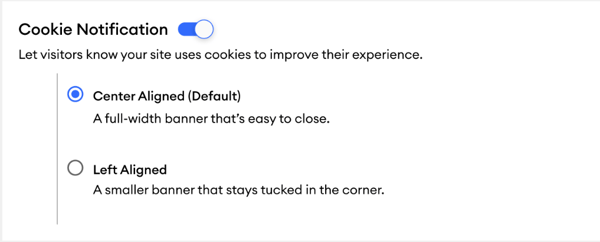
To help address evolving cookie disclosure requirements across multiple U.S. states and jurisdictions, FMG is introducing a built-in cookie disclaimer banner for eligible users, including FMG website subscribers using the Developer Theme and Marketing Suite users with Landing Page access. The banner appears on a user’s Website or Landing Page to notify visitors that cookies are in use and includes a link to the applicable cookie policy, providing a simpler way to support disclosure messaging without relying on third-party tools or custom solutions. The feature is available by default unless your Home Office elects to opt out, and for participating firms, users can enable it in their FMG admin under Website > Settings > Cookie Notification. If your firm would like to opt out of making this banner available on its FMG Websites or Landing Pages, please contact the Home Office Success team.
- Reduced burden on individual users: Users no longer need to seek external solutions for cookie disclosures. The banner integrates directly into their existing FMG website settings.
- Program-level flexibility: Home offices may opt out of the feature entirely for their program, or submit customization requests to align banner content with their specific compliance language and requirements.
- Centralized compliance control: Home offices can reach out to the Home Office Success team to request customized banner language and policy links at the program level, ensuring consistent, compliant messaging across all associated users without relying on individual advisors.
- Banner placement: users may choose bottom-center or bottom-left positioning
- Visitors can dismiss the banner; it is informational only and does not offer cookie accept/reject controls
- Individual users cannot edit the banner text or policy URL — these are managed at the home office level to ensure program-wide consistency
- The banner is toggled off by default; each user must enable it manually
.png?width=600&height=383&name=CenterAlignedCookieBanner%20(1).png "CenterAlignedCookieBanner (1)")
Common Questions:
Can individual users customize the banner text or policy link? No. Customization of the banner text and cookie policy URL is available only at the home office level. Requests can be submitted through your Home Office Success team.
Is the banner enabled automatically for all users? No. While the feature is enabled by default at the program level, each individual user must manually toggle it on in their FMG admin under Website> Settings > Cookie Notification (slide on toggle).
Can our firm opt out of this feature? Yes. Home Offices may request to opt out entirely, which will remove the feature from all subscriber users in their program. Contact your Home Office Success team to submit this request.
Does the banner allow visitors to accept or reject specific cookies? No. The banner is informational only. It notifies visitors of cookie usage but does not provide granular controls to accept or reject individual cookies.
How do we request customized banner language for our program? Home offices can contact the Home Office Success team to request customizations to banner text and the policy URL. These requests are coordinated and implemented at the program level.
Social Media Integration Notification – 4/7/26
This update is available for all users with access to FMG’s social media integration tools. We have added a new system notification email that alerts users when one or more previously active social media integrations become “Invalid” or “Expired.” To ensure users' social channels remain active and effective, we have reintroduced automated system notifications that alert users the moment a social media integration requires attention. For Home Offices utilizing branded system notifications, these emails will automatically inherit your existing enterprise branding.
While this is a standalone notification focused solely on connection health, it is managed through the same delivery settings as the Daily Digest. For Home Offices utilizing branded system notifications, these emails will automatically inherit your existing enterprise branding.
- Reduced Posting Failures: Clear, timely visibility into broken connections prevents "silent" failures, ensuring scheduled and automated content continues without interruption.
- Proactive Management: Daily alerts provide a direct path for users to quickly restore or remove affected integrations.
- Relationship to Patrol/Proofpoint: The FMG "Expired" or "Invalid" status that triggers these new email notifications is unrelated to what is happening in Proofpoint (Patrol Status and/or Patrol Profile Status). The status change indicates an issue that they will need to resolve in their FMG account to get their social integrations working again.
- Review/Non-Compliant Statuses: The email will not be triggered if an integration is in a "Review" or "non-compliant" status, as long as the underlying social media connection remains "Active". Notifications are only sent when integrations change status from "Active" to "Invalid" or "Expired".
- Branding: If you utilize branded system notifications, these emails will automatically inherit your existing enterprise branding.
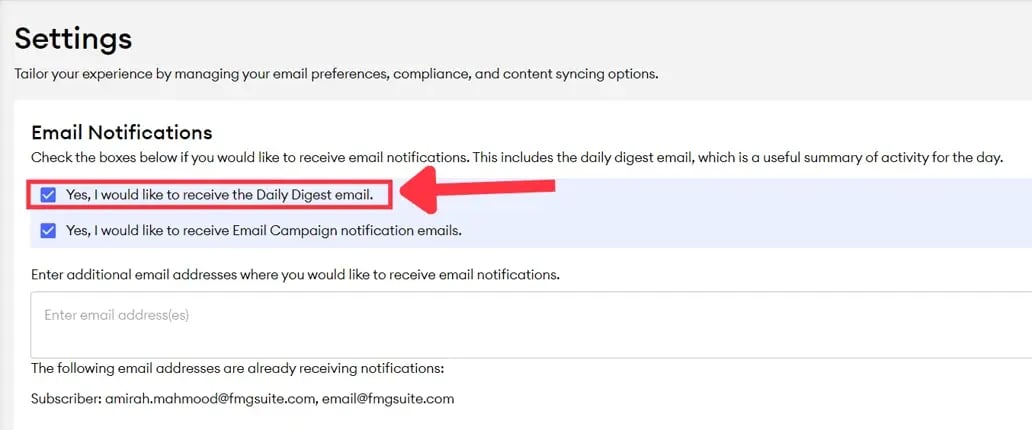
- Delivery Settings: These alerts are managed through the same delivery settings as the Daily Digest, meaning users must have the Daily Digest enabled to receive them.
To receive social media integration notifications, users should:
-
Navigate to the Settings section in their account. This is located in the top-right corner of their account, under their account name.
-
There, they can enter their email address in the Email Notifications box.
-
Check “Yes, I would like to receive the Daily Digest email” to enable this notification, since it uses the same delivery settings.
Common Questions:
How can users enable these notifications? Users should navigate to the Settings section under their account name (top-right corner). In the Email Notifications box, they must enter their email address and check "Yes, I would like to receive the Daily Digest email".
What is the notification cadence? Notifications are sent once daily at approximately 6:00 PM CT as long as an integration remains "Invalid" or "Expired". Alerts will stop once the user reintegrates or removes the connection.
Can a user opt out of the Daily Digest but keep these alerts? Currently, these notifications use the same delivery settings as the Daily Digest. To receive social media status alerts, the Daily Digest must remain enabled.
How can users stop notifications for an account they no longer use? Users can navigate to Social >> Manage Social Media, select "Review" next to the integration, and click "Disconnect Account" to permanently stop alerts for that specific profile
What Triggers the Email? (The definition of "Disconnected"): The new system notification email is specifically designed to alert users when a previously "Active" social media integration moves to an “Invalid” or “Expired” FMG status.
Event Tool: RSVP Event Confirmation Preview - 3/31/26
All FMG Marketing Suite users with Event tool access now have a “Preview Confirmation Email” button in the Event Builder to see a real-time, read-only preview of the confirmation email sent after an RSVP. Previously, users could not view this email in advance. With this update, users can now clearly see how event details—such as title, date, and description—populate the confirmation email as they build the event.
This update allows users to view the layout and content of these automated touchpoints in advance:
- Visibility: See how the event title, date, location, and description populate in real time
- Consistency: Confirm firm branding, host information, and required disclosures appear correctly
When building or editing an event, navigate to the “Add Registration” section and enable guest registration. Once required fields (such as event name and location) are completed, the Preview Confirmation Email button becomes active.
Any updates made to event details will automatically refresh in the preview, ensuring it reflects the most current version of the confirmation email.
Please note: While this feature provides full visibility, the confirmation email remains system-generated to ensure compliance and consistency. The layout and standardized text cannot be edited..png?width=1600&height=1027&name=image%20-%202026-02-02T154636.046%20(2).png "image - 2026-02-02T154636.046 (2)")
Common Questions:
Can users edit the confirmation email text or layout now that there’s a preview? No, the preview is for visibility only. Users can edit the Event confirmation email content by updating their event details (title, description, date/time, host) and see how those changes appear in the confirmation email.
Will the preview show branding and disclosures? Yes, the preview will reflect any existing branding and any required disclosures configured for the user's account, so it will closely match what their registrants see in their inboxes.
Learn How to Add New Events
Event Tool: New Disclosure Field for Privacy & Compliance Control - 3/31/26
This update is available to all users with access to FMG Event Tools. It introduces a dedicated Event Disclosures field, which provides a standardized location for firm-approved CPRA/CCPA privacy statements or legally required privacy and compliance disclosures at the event level. By keeping disclosures separate from the main event description, this update improves consistency, reduces risk, ensures clear visibility for registrants, and supports Compliance Admin review.
- Dedicated Disclosure Space: A new field in the Event Builder allows for the entry of privacy and legal language without cluttering the main event details.
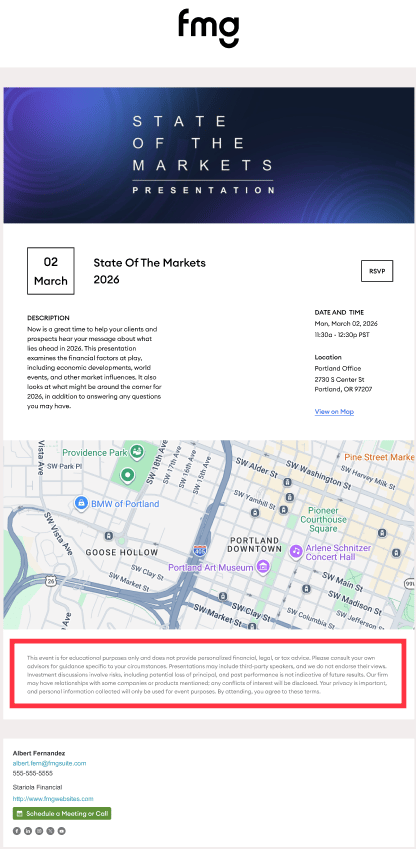
- Standardized "Fine Print": Once approved, disclosure content automatically appears as formatted fine print at the bottom of the event landing page, below registration details.
- Enhanced Compliance Visibility: Disclosure text is now a distinct part of Event compliance cases, making it easier for Home Office admins to identify, review, and approve the exact language used.
-
- Navigate to Event Builder: In the FMG admin, go to Events > Create Event (or edit an existing event).
- Input Disclosure Text: Locate the new Event Disclosures field and enter the firm-approved language.
.png?width=575&height=489&name=Editor%20(1).png "Editor (1)")
3. Submit for Review: Select Publish to send the event, including the disclosure text, to compliance for approval.
4. Automatic Placement: Once approved, the text will be displayed at the bottom of the event landing page below the main details.
Common Questions:
Is this disclosure field required? No, the field is optional. However, it is highly recommended for events that collect personal information or where specific firm policies apply.
Does FMG provide the disclosure language? No. Users remain responsible for providing their own appropriate legal or privacy language.
Will existing events be updated? No. Existing events will not change automatically. To add disclosures to an existing event, users must manually edit the event and enter the new disclosures in the new field.
Do users need to add this for every event? Yes, the disclosure information must be entered for each individual event that requires it.
Does this field automatically generate compliant CPRA/CCPA language for users? No. The feature provides a dedicated space to store and display disclosures, but it does not generate or validate the content itself. Users and their compliance teams remain responsible for providing appropriate legal language.
Looking for Customer-Facing Release Updates?
Check out our Suite New Releases page linked below.
Tip: You can always find the link to this page on the main page of our Knowledge Center (upper right > New Releases).