
FMG Release Highlights
Exclusively for Home Office Staff
Latest Releases
FMG updates this section monthly to share some of the more significant releases and enhancements you may enjoy learning about.
New Spanish-language Automated Content - Coming Soon!
Marketing Suite Premium users now have Spanish-language automated content through the new Spanish Premium Agency. This update directly addresses the growing demand for multilingual resources and provides a broader range of content for users. With this update, users can streamline their communication efforts and eliminate the need for manual translations. This update includes translations of the Monthly Market Insights (MMI) and Quarterly Market Insights (QMI), as well as limited holiday messages. Compliance admins must approve Spanish content when it is scheduled, either manually or automatically, for it to be sent successfully. Home offices can opt out of the Spanish Premium Agency, ultimately hiding it from their subscribers. If you would like to opt out, reach out to support at homeofficesupport@fmgsuite.com.
What's Changing?
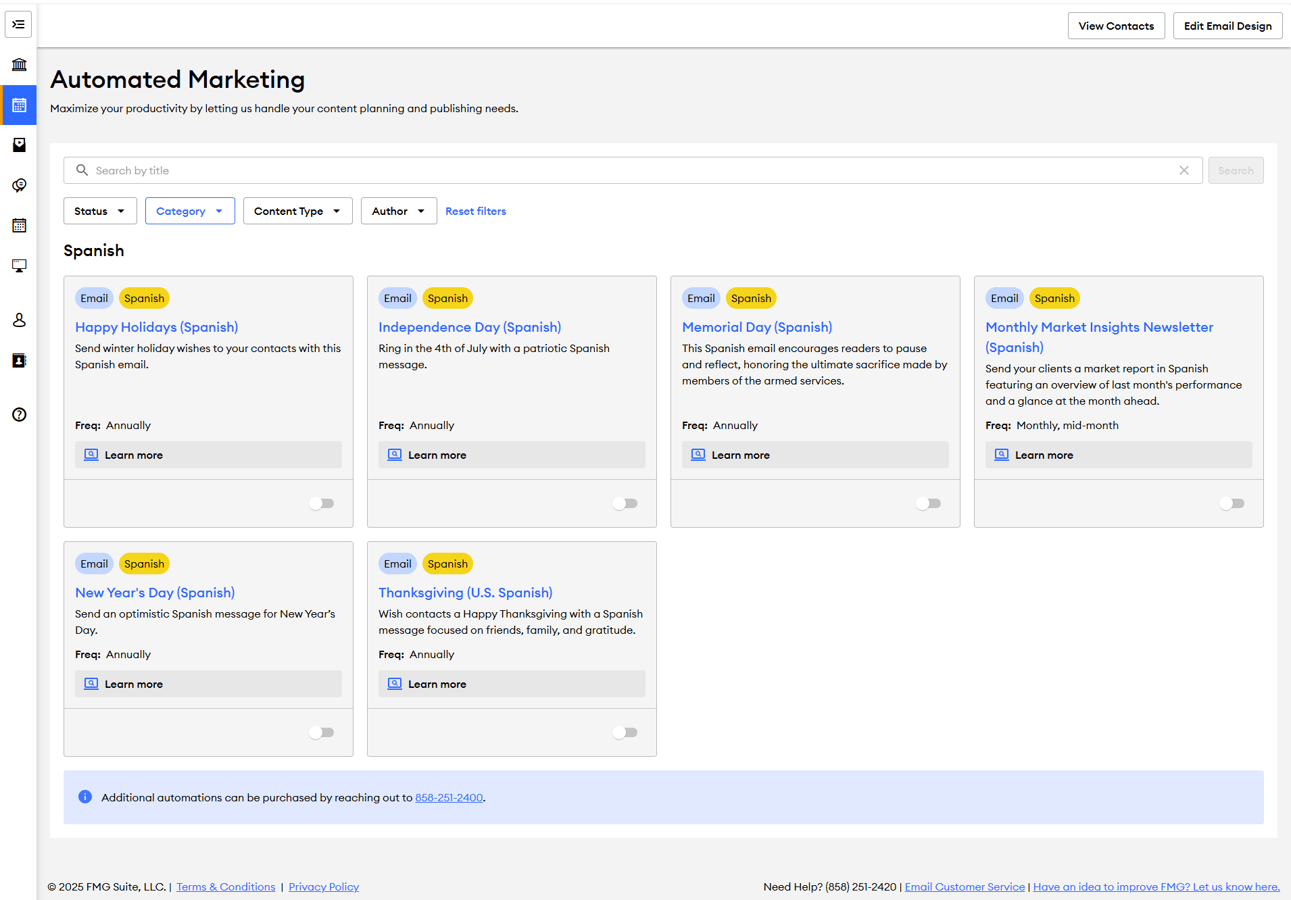
Users can now utilize new automated marketing emails and holiday messages in Spanish, available under the "Automated Marketing" tab in the "Spanish" category.
Automations Available in Spanish:
- Monthly Market Insights (MMI) and Quarterly Market Insights (QMI)
- Five holidays:
- Memorial Day
- Independence Day
- Thanksgiving
- Happy Holidays
- New Year's Day
Key Benefits:
- Enhanced Engagement: Connect more effectively with Spanish-speaking clients through tailored content.
- Efficiency: Reduce the time spent on creating custom Spanish content.
- Broad Reach: Expand your market outreach by catering to a multilingual audience.
Common Questions:
How do users find Spanish content? Spanish content is available as Automated Marketing emails and standalone emails in the Content Library. Here’s how to locate Spanish content in these places:- Automated Marketing: In a user's FMG account, navigate to the “Automated Marketing” tab located in the left menu. Then, search “Spanish” in the search bar to quickly find all the Spanish automations.
- Content Library: To locate the Spanish automations as standalone emails in the Content Library, apply the “FMG: Premium Spanish” author filter to see all Spanish content.
- These emails are typically viewable in the Content Library one day before they are scheduled to be sent via automation.
Can users edit the Spanish content before it is sent? Yes. Once the Spanish campaign email is available in their Content Library as a standalone email, they can open it in the Email Builder to customize the content and send it manually, rather than using the automated campaign. Please remember that compliance teams must approve the content before it is sent, and ensure the automated version is turned off to prevent duplicate messages.
Is the automated Spanish version of Monthly Market Insights sent at a different time than the English version? The Spanish MMI automated emails are typically sent a few days apart, allowing us time to translate the English version into Spanish. Edits to the English MMI are made up until it’s published, and the final version will be translated into Spanish accordingly.
Does the subscriber email disclosure automatically translate to Spanish when using Spanish automations? Disclosures specific to each content piece are translated and included in the Spanish email content. However, there is no way to automatically switch the subscriber email disclosure from its usual English version to a Spanish version.
When Spanish content is available for compliance review, does it appear in Spanish? What if we don’t have a Spanish speaker in our compliance department? Yes, the Spanish campaigns appear in Spanish for compliance review, including the translated disclosures. If your compliance team does not have a Spanish speaker, it is recommended to double-check the English version of the automation. The Spanish MMI/QMI emails will be the same report and details in an email format, without the video.
Removing Contacts from Scheduled Emails - Available 12/8/25
Marketing Suite users can now easily remove individual contacts from emails that are scheduled or in review—directly from the Email > Sent and Scheduled page in their FMG admin. This enhancement is based directly on user feedback and eliminates the need for the previous, multi-step workaround. With this update, users can exclude a contact from an upcoming standalone email without adjusting group membership or modifying their contact record. Note: This update does not apply to Automated Marketing emails.
What's Changing?
Users can now remove an individual contact from a scheduled email send without having to edit the entire audience group. This option is available in the detailed view of any email with a status of 'Scheduled' or 'In Review'.
To remove a contact from an upcoming scheduled email:
- Go to Email > Sent and Scheduled and locate an email marked Scheduled or In Review.
- Click the email title to open the detailed view and recipient list.
- Find the contact you want to remove.
- In that contact’s row, open the Actions dropdown and select Remove from Send.
- Confirm your selection in the modal dialog that appears.
This action affects only the selected scheduled email and does not impact group membership or the contact record.
Key Benefits:
- More control: Users can selectively remove recipients without modifying groups or audience selections.
- Time-Saving: Eliminates the need to edit groups, reschedule emails, or re-add contacts afterward.
- Error Reduction: Decreases the likelihood of accidental sends, particularly in large group distributions.

Common Questions:
Can users remove individual contacts from an upcoming scheduled automated email? No, this feature is not available for automated emails. It applies only to emails with "Scheduled" or "In Review" statuses.
Will removing a contact from a scheduled email also remove them from the group? No, the contact will remain in their original groups and contact lists.
Can this action be reversed after it is removed? Not directly. You would need to reschedule the email to include the contact again.
Is there a time limit for removing a contact for a scheduled email? Yes, you can only remove a contact up to 24 hours before the email is set to be sent.
Can users remove a contact from an email sequence? Yes, however, this action will not remove the contact from all scheduled emails in the email sequence. The contact would need to be manually removed from each individual email in the sequence.
Website Update: Mobile Phone Number Support for Team Member Profiles - Available 11/20/25
We’ve updated the Website Team Member editor to support both office and mobile phone numbers—along with a new “voice-only” option that helps Home Offices manage texting restrictions for all website subscribers. This enhancement gives advisors more flexibility while maintaining compliance oversight.
What Advisors Can Do:
We’ve enhanced the Team Member website editor to support two distinct phone fields: Office Phone and Mobile Phone, with an optional “voice-only” flag for mobile numbers to address compliance concerns around text messaging.
Key Benefits:
This update modernizes the contact display on advisor websites, providing clearer controls for Home Offices that restrict texting.
Change Overview:
This update includes several enhancements to the Website > Team Member editor:
- The existing "Phone" field has been relabeled "Office Phone."
- A new "Mobile Phone" field has been added.
- Team Members can now flag their mobile number as “Voice only,” which discourages website visitors from sending text messages, as a visible mobile number may otherwise be interpreted as text-enabled.
- vCard downloads for Team Members now includes the new mobile phone field. If "Voice only" is checked, the vCard will display the number as "voice only.”
How It Works:
- When editing or adding Team Member profiles on the Website > Team Member page, users can see "Office Phone" and "Mobile Phone" fields.
Team Member Editor Example:
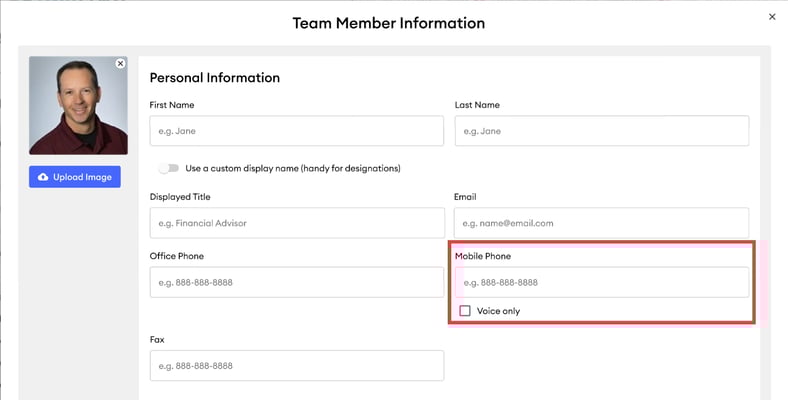
2. For mobile numbers, there’s a checkbox to mark the number as "voice only", which is displayed on the website and vCard outputs.
Website Team Member “Read More” View Example:
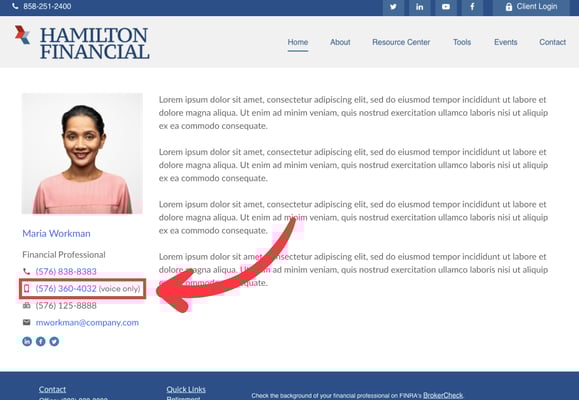
3. After making edits, users must publish their changes for compliance review. Compliance can reject changes when necessary.
Common Questions:
Can users now have both their office and mobile numbers listed on a team member profile? Yes! The platform now supports distinct fields for office and mobile phone numbers. Follow the steps in this help article to add mobile numbers to Team Members: How to Add and Manage Team Members on Your Website.
Is this update configurable per program? No, this update is global for all website subscribers, and users are able to flag mobile phone numbers as “voice-only.” Compliance can reject Team Member profiles that do not meet compliance requirements.
Marketing Suite | Calendar View on Marketing Calendar - 11/4/2025
FMG users (advisors) now have a new Calendar View in their Marketing Calendar. This top-requested enhancement streamlines the process for advisors to plan, visualize, and schedule their marketing campaigns. This update is designed to provide advisors with a clearer, more intuitive way to plan and schedule marketing activities, making it easier to identify gaps, balance messaging throughout the month, and take action more quickly. All Marketing Suite users can now see this automatically in their calendar view.
What's Changing?
The Marketing Calendar now features two views:
- Calendar View (New): A visual, interactive layout lets users plan their marketing at a glance.
- List View (Existing): The familiar, detailed list remains available below the calendar.
Users can toggle between views seamlessly, without losing functionality or disrupting workflows.
Key Benefits:
- Simplified Planning: Advisors can visually map out campaigns, spot scheduling gaps, and balance content across the month at a glance.
- Stronger Marketing Consistency: Clearer visibility into timing helps ensure even distribution of communications—supporting firm-wide marketing strategies.
- Faster Execution: Advisors can click any date to add or review content in seconds, reducing friction and support needs.
- No Configuration Required: The feature is automatically available to all users with no setup, training, or compliance changes needed.
%20(1).png?width=2000&height=913&name=image%20(98)%20(1).png "image (98) (1)")
Common Questions:
Will this change affect the Marketing Calendar view on the Mobile App? We are not updating the Mobile App Marketing Calendar with the Calendar View at this time.
Can users select to see only the Calendar View or just the List View? Both views are always visible; there is currently no option to hide either one.
Will this change affect how users' content is sent or reviewed? No, this is a visual and usability update only. All sending, reviewing, and compliance workflows will remain unchanged.
How do users add new content to an empty date? Simply click the “Add content” link on any empty date to schedule new items from users' Content Library quickly.
SPF Verification Workflow Improvements - Available 10/29/25
We’re introducing an enhanced DNS verification system for FMG customers (users) that takes the complexity out of custom email domain management.
We are now performing automatic daily checks on DNS records, so domain statuses in FMG are always accurate and refreshed within 24 hours. By automating what was previously a manual, error-prone process, this update:
- Reduces failed email sends
- Cuts down on user and support team workload
- Provides continuous protection, even if a domain becomes unauthenticated
What's Changing?
1. Always-Accurate Statuses
- Automated Daily Checks: FMG now verifies domains every 24 hours (nightly) and updates statuses automatically.
- Continuous Monitoring: If DNS settings change after authentication, the domain automatically downgrades to “Pending,” so the status a user sees in their account settings is always accurate.
- Removed Manual Step: Once DNS records are set up correctly, FMG now automatically authenticates the domain within 24 hours. Users no longer need to log in and click “Authenticate,” reducing errors and support tickets.
2. Reliable Email Delivery
- Fallback Protection: If a domain isn’t authenticated, emails automatically send from FMG’s default domain (email01.fmgsuite.com), so communications continue without disruption.
- Stronger Error Handling: If an authenticated domain breaks, FMG automatically detects it and routes emails through the fallback domain — preventing silent failures.
3. Cleaner Oversight
- Cleanup of Inactive Domains: Domains tied to inactive accounts or stuck in “Pending” for more than 30 days are automatically removed, keeping records accurate and reducing compliance risk.
.png?width=974&height=108&name=Screenshot%202025-08-11%20at%202.28.08%20PM%20(1).png "Screenshot 2025-08-11 at 2.28.08 PM (1)")
Common Questions:
Will users be notified if my domain status changes? Notifications are not currently sent. However, users can trust that the status shown in FMG reflects a check completed within the past 24 hours. This ensures statuses stay accurate and up to date without manual intervention.
Will the automated DNS checks affect a user’s current email deliverability? No, these checks will not impact deliverability. In fact, they improve reliability by ensuring that if a domain becomes unauthenticated, emails will continue to be sent via FMG’s default domain.
What happens if a user doesn’t complete verification? If a domain remains pending for more than 30 days, it will automatically revert to “Unverified.” The user can restart the process anytime, and in the meantime, emails will still be sent via FMG’s default domain.
How does this impact Home offices, which often handle DNS setup for advisors? The new workflow updates will make the bulk activation process smoother, since FMG now automatically completes checks and clean-up.
Ticker Badges for Enhanced Compliance Management - Available 10/16/25
Compliance teams can now see ticker badges in the Compliance Admin Library Cases, providing immediate visibility into items with “pending review” status, thereby improving efficiency and reducing oversight. This update solves issues for missed automations within the approval window.
What's Changing?
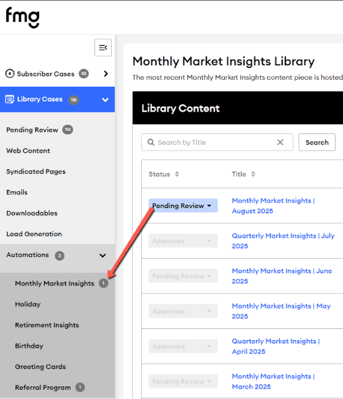
The Compliance Admin Library Case now features ticker badges, replacing the outdated "Pending Review" page. These badges indicate the number of items with a "Pending Review" status across various content types, including Web Content, Syndicated Pages, Lead Generation, and Automations. It does not apply to "Downloadables" and the Emails Library "Library Cases" grid, as these items already have a "Visible" status and do not require additional review.
Key Benefits for Compliance:
- Improved Visibility: Easily track the number of items pending review directly from the Library Case pages.
- Enhanced Efficiency: Streamline the review processes with clear, immediate indications of items needing attention.
- Simplified Workflow: Eliminate reliance on outdated systems and reduce the potential for oversight in compliance content management.
.png?width=1534&height=600&name=UpcomingEmailAutomations%20(1).png "UpcomingEmailAutomations (1)")
.png?width=216&height=300&name=Automations-TickerBadges%20(1).png "Automations-TickerBadges (1)")

.gif?width=622&height=350&name=ExampleEmaiLibraryCases%20(1).gif "ExampleEmaiLibraryCases (1)")
Common Questions:
Why aren't emails in the Email Library Cases included in the ticker badge count? The ticker badge for Emails only reflects "Upcoming Email Automations" due to their time-sensitive nature, requiring review and approval before sending.
New Feature: Ability to List Multiple Offices within Website Footer - Available 10/16/25
Premium website users with sites built on the Developer theme can now easily add multiple office locations to their website footer from within the Profile > Locations Page in their dashboard. Before this release, adding additional locations required custom requests from the website build team—this update puts that control directly in users’ hands, making it much easier to manage. All additional locations will continue to follow the standard compliance review process and must be approved before appearing on the site. Learn more.
What Advisors/Users Can Do:
- The primary location in the footer will continue to pull from "Contact Info.” Additional locations will be sourced from the "Locations" section and will be displayed below the primary location on the website footer.
- Users will manage and adjust the order of office locations with an intuitive drag-and-drop interface within the Profile > Locations section of their FMG dashboard.
- Premium website users now also have the ability to 'hide' from their website and footer.
Common Questions:
How can a website user with a Premium website tell if they have this feature, if they are unsure if their website was built on the Developer theme? Users can confirm they are on the Developer Theme in their FMG dashboard, under the ‘Website’ tab, in the ‘Design’ section. However, we do not recommend that users change or update their theme (this could mess up their website build). Example:
.png?width=549&height=300&name=unnamed%20(14).png "unnamed (14)")
Common Questions:
How will this affect existing custom work for multiple locations? Our Product team is working to ensure this feature integrates smoothly without impacting existing custom solutions.
Can additional locations be added to a Marketing Suite landing page footer? Currently, this feature is exclusive to the Website Suite Premium package and is not available for Marketing Suite accounts.
Is there a limit to the number of locations I can add to the footer? There is no limit; you can add as many locations as needed to your website footer.
Compliance Update: Introducing Our New Social Compliance Library - Available 10/1/25
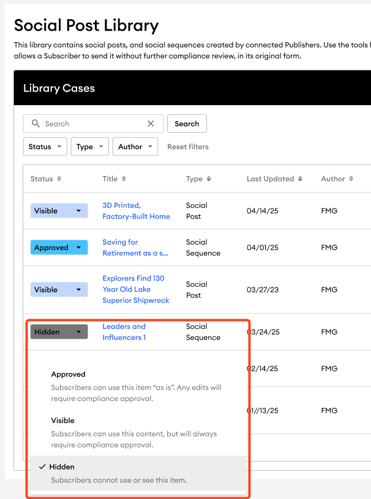
We’ve added a new Social Compliance Library to the FMG Compliance Workspace. This centralized tool now gives Home Office Compliance teams a single place to review, approve, or hide all social media content before it reaches FMG subscriber users.
What's Changing?
Currently, there is no Compliance review workflow for social media content created before it is visible to users. With this release, Compliance now gain greater visibility and control over social posts and sequences. At the same time, users only see content approved or made visible according to their firm’s compliance rules.Key Benefits:
- Compliance Statuses: Content can be set to "Visible," "Approved," or "Hidden". For programs where compliance review is enabled, "Approved" content can be used by subscribers as-is, while "Visible" content still requires approval.
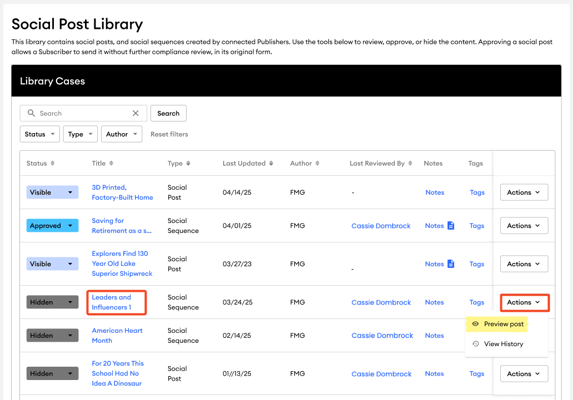
- Direct Previews: Compliance users can preview social posts and sequences directly from the library.
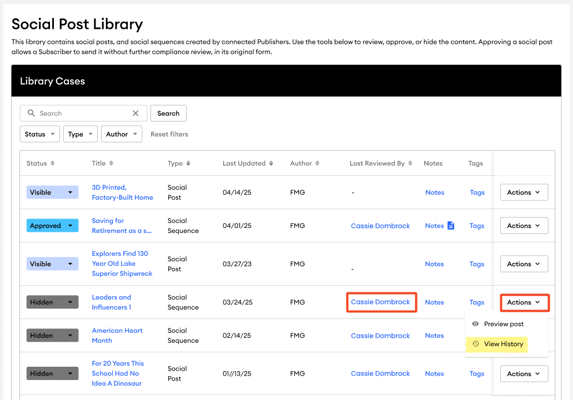
- Audit Trail: A complete history of all status changes is available for each piece of content.
- Notifications: Automated email notifications can be set up to alert compliance teams when new content is ready for review.
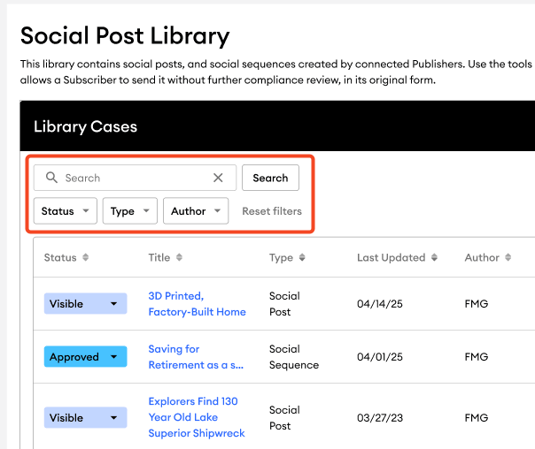
- Search and Filtering: The library includes tools for searching for content and filtering it by status, type, and author.
Common Questions:
Our Compliance Team has a review process outside of FMG for content pre-approval. How does this impact our workflow? We will continue to support these workflows for Social Posts and Sequences through an updated Compliance rules engine system.
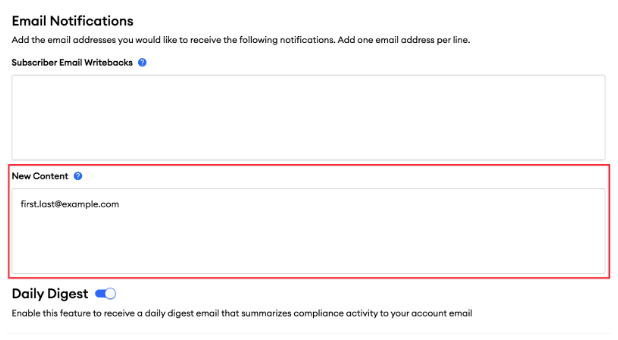
How will Compliance teams be notified when new content is added? Compliance teams can be notified of new content through email notifications. To set this up, navigate to the "Settings" page by clicking on your username in the upper right corner. Under the "Email Notifications" section, add the appropriate email addresses in the "New Content" area and click “Save” to ensure that all relevant team members receive alerts when new social posts or sequences are published.
Can Compliance officers perform bulk updates on Compliance statuses? No, we do not support bulk updates for pre-existing published content at this time. Instead, Compliance teams will individually review and update the compliance status of content pieces in their Content Library Cases area.
How does hiding content affect social sequences? Compliance Users cannot hide individual social posts that are part of a social sequence in the Social Compliance Library. While they can view the entire social sequence and have the option to hide it entirely, they cannot hide just a single post within the sequence. Hiding an individual social post will hide the entire social sequence.
What happens when a new Publisher/Agency is created? If a new publisher is linked to a subscriber account with direct compliance, the default global Compliance rule for social content will be set to “Visible.” If pre-approval is needed, the default must be changed to “Approved” through a home-office support request.
Enhanced External ID Management for Compliance and Publisher Users - Available 10/1/25
We’ve enabled Home Office Compliance and Publisher Admin users to view and edit External IDs 3 and 4, extending their existing access beyond External IDs 1 and 2. This change reduces reliance on FMG Support, gives home office teams more control over advisor data, and improves integration with enterprise systems. It helps streamline audits, simplify reporting, and align with each firm’s unique ID schemes.
What's Changing?
Compliance and Publisher users can now manage External IDs 3 and 4 within the "Subscriber Settings" section, adding to their existing External ID access.- Editable External IDs: Compliance Officers and Marketing (Publisher) Users can see and edit External ID 3 and 4 under the "Subscriber Settings" section.
- Customization: External IDs will have customized labels per program/publisher.
- Activity Logs: We will provide activity logs for External ID updates.
For Compliance Admin:
Compliance Admin users can find External IDs under "Subscriber Information" by navigating to "Subscribers" > "View All" and then clicking "View Details" on a user.
.png?width=1600&height=766&name=ComplianceAdminSubscriberSettings%20(2).png "ComplianceAdminSubscriberSettings (2)")
For Publisher Admin:
Publisher Admin users can find External IDs within the Subscriber Details by accessing the Subscribers left navigation and selecting "View Details" for a specific user.
.png?width=1600&height=759&name=PublisherAdminSubscriberSettings%20(1).png "PublisherAdminSubscriberSettings (1)")
Common Questions:
What are External IDs for? External IDs allow enterprises to maintain their existing identification schemes within FMG's platform, simplifying management, reporting, and integration processes.
Does this change affect how we identify FMG customers (users) in FMG? Yes, you now have more flexibility to align FMG’s system with your firm’s internal ID schemes, making it easier to locate advisors and ensuring accurate mapping across systems.
Can we customize the labels for External IDs? Yes. Contact FMG Home Office Support with the labels you’d like to use for External IDs 3 and 4.
Will these changes be tracked? Yes. All updates to External IDs appear in activity logs for transparency and auditing.
Does this impact compliance review or create any new obligations? No. This is a global enhancement that improves visibility and data management but does not alter compliance review processes.
How does this update impact advisors? This update will help enterprises with bulk activation, facilitate easier mapping of advisors to internal IDs, support integration with CRM systems, and simplify locating specific advisor accounts.
Looking for Customer-Facing Release Updates?
Check out our Suite New Releases page linked below.
Tip: You can always find the link to this page on the main page of our Knowledge Center (upper right > New Releases).