
FMG Release Highlights
Exclusively for Home Office Staff
Latest Releases
FMG updates this section monthly to share some of the more significant releases and enhancements you may enjoy learning about.
Social Media Integration Notification – 4/7/26
This update is available for all users with access to FMG’s social media integration tools. We have added a new system notification email that alerts users when one or more previously active social media integrations become “Invalid” or “Expired.” To ensure users' social channels remain active and effective, we have reintroduced automated system notifications that alert users the moment a social media integration requires attention. For Home Offices utilizing branded system notifications, these emails will automatically inherit your existing enterprise branding.
While this is a standalone notification focused solely on connection health, it is managed through the same delivery settings as the Daily Digest. For Home Offices utilizing branded system notifications, these emails will automatically inherit your existing enterprise branding.
- Reduced Posting Failures: Clear, timely visibility into broken connections prevents "silent" failures, ensuring scheduled and automated content continues without interruption.
- Proactive Management: Daily alerts provide a direct path for users to quickly restore or remove affected integrations.
- Relationship to Patrol/Proofpoint: The FMG "Expired" or "Invalid" status that triggers these new email notifications is unrelated to what is happening in Proofpoint (Patrol Status and/or Patrol Profile Status). The status change indicates an issue that they will need to resolve in their FMG account to get their social integrations working again.
- Review/Non-Compliant Statuses: The email will not be triggered if an integration is in a "Review" or "non-compliant" status, as long as the underlying social media connection remains "Active". Notifications are only sent when integrations change status from "Active" to "Invalid" or "Expired".
- Branding: If you utilize branded system notifications, these emails will automatically inherit your existing enterprise branding.
- Delivery Settings: These alerts are managed through the same delivery settings as the Daily Digest, meaning users must have the Daily Digest enabled to receive them.
To receive social media integration notifications, users should:
-
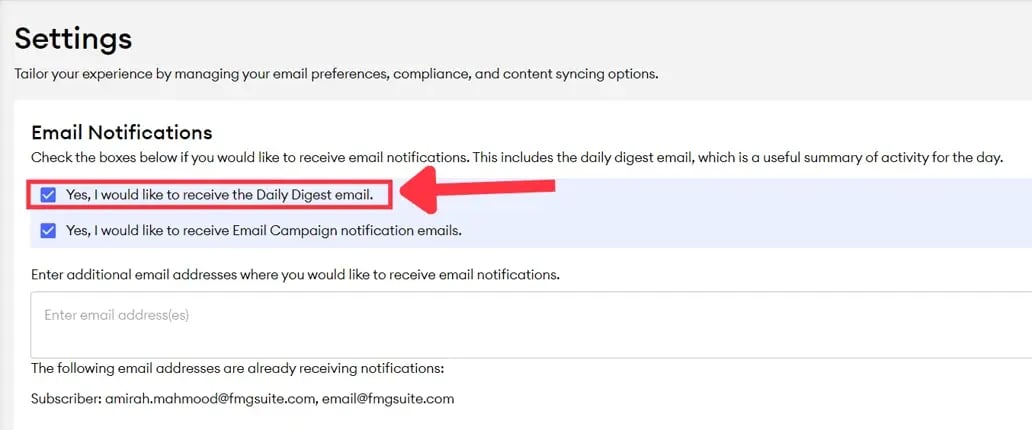
Navigate to the Settings section in their account. This is located in the top-right corner of their account, under their account name.
-
There, they can enter their email address in the Email Notifications box.
-
Check “Yes, I would like to receive the Daily Digest email” to enable this notification, since it uses the same delivery settings.
Common Questions:
How can users enable these notifications? Users should navigate to the Settings section under their account name (top-right corner). In the Email Notifications box, they must enter their email address and check "Yes, I would like to receive the Daily Digest email".
What is the notification cadence? Notifications are sent once daily at approximately 6:00 PM CT as long as an integration remains "Invalid" or "Expired". Alerts will stop once the user reintegrates or removes the connection.
Can a user opt out of the Daily Digest but keep these alerts? Currently, these notifications use the same delivery settings as the Daily Digest. To receive social media status alerts, the Daily Digest must remain enabled.
How can users stop notifications for an account they no longer use? Users can navigate to Social >> Manage Social Media, select "Review" next to the integration, and click "Disconnect Account" to permanently stop alerts for that specific profile
What Triggers the Email? (The definition of "Disconnected"): The new system notification email is specifically designed to alert users when a previously "Active" social media integration moves to an “Invalid” or “Expired” FMG status.
Event Tool: RSVP Event Confirmation Preview - 3/31/26
All FMG Marketing Suite users with Event tool access now have a “Preview Confirmation Email” button in the Event Builder to see a real-time, read-only preview of the confirmation email sent after an RSVP. Previously, users could not view this email in advance. With this update, users can now clearly see how event details—such as title, date, and description—populate the confirmation email as they build the event.
This update allows users to view the layout and content of these automated touchpoints in advance:
- Visibility: See how the event title, date, location, and description populate in real time
- Consistency: Confirm firm branding, host information, and required disclosures appear correctly
When building or editing an event, navigate to the “Add Registration” section and enable guest registration. Once required fields (such as event name and location) are completed, the Preview Confirmation Email button becomes active.
Any updates made to event details will automatically refresh in the preview, ensuring it reflects the most current version of the confirmation email.
Please note: While this feature provides full visibility, the confirmation email remains system-generated to ensure compliance and consistency. The layout and standardized text cannot be edited..png?width=1600&height=1027&name=image%20-%202026-02-02T154636.046%20(2).png "image - 2026-02-02T154636.046 (2)")
Common Questions:
Can users edit the confirmation email text or layout now that there’s a preview? No, the preview is for visibility only. Users can edit the Event confirmation email content by updating their event details (title, description, date/time, host) and see how those changes appear in the confirmation email.
Will the preview show branding and disclosures? Yes, the preview will reflect any existing branding and any required disclosures configured for the user's account, so it will closely match what their registrants see in their inboxes.
Learn How to Add New Events
Event Tool: New Disclosure Field for Privacy & Compliance Control - 3/31/26
This update is available to all users with access to FMG Event Tools. It introduces a dedicated Event Disclosures field, which provides a standardized location for firm-approved CPRA/CCPA privacy statements or legally required privacy and compliance disclosures at the event level. By keeping disclosures separate from the main event description, this update improves consistency, reduces risk, ensures clear visibility for registrants, and supports Compliance Admin review.
- Dedicated Disclosure Space: A new field in the Event Builder allows for the entry of privacy and legal language without cluttering the main event details.
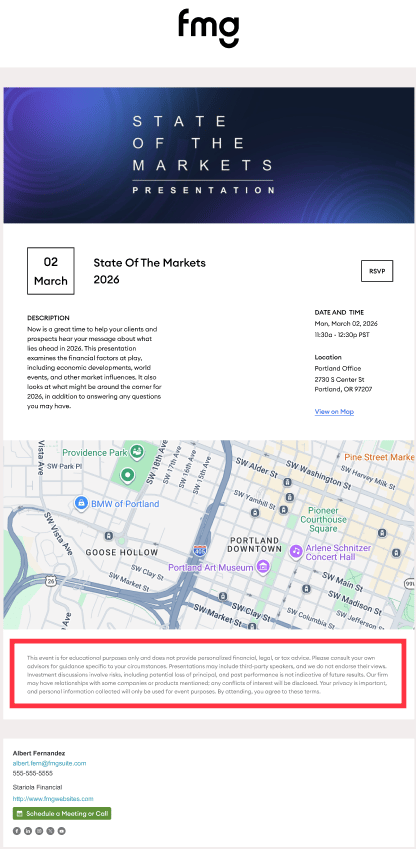
- Standardized "Fine Print": Once approved, disclosure content automatically appears as formatted fine print at the bottom of the event landing page, below registration details.
- Enhanced Compliance Visibility: Disclosure text is now a distinct part of Event compliance cases, making it easier for Home Office admins to identify, review, and approve the exact language used.
-
- Navigate to Event Builder: In the FMG admin, go to Events > Create Event (or edit an existing event).
- Input Disclosure Text: Locate the new Event Disclosures field and enter the firm-approved language.
.png?width=575&height=489&name=Editor%20(1).png "Editor (1)")
3. Submit for Review: Select Publish to send the event, including the disclosure text, to compliance for approval.
4. Automatic Placement: Once approved, the text will be displayed at the bottom of the event landing page below the main details.
Common Questions:
Is this disclosure field required? No, the field is optional. However, it is highly recommended for events that collect personal information or where specific firm policies apply.
Does FMG provide the disclosure language? No. Users remain responsible for providing their own appropriate legal or privacy language.
Will existing events be updated? No. Existing events will not change automatically. To add disclosures to an existing event, users must manually edit the event and enter the new disclosures in the new field.
Do users need to add this for every event? Yes, the disclosure information must be entered for each individual event that requires it.
Does this field automatically generate compliant CPRA/CCPA language for users? No. The feature provides a dedicated space to store and display disclosures, but it does not generate or validate the content itself. Users and their compliance teams remain responsible for providing appropriate legal language.
Feature Update: Bounced Email Re-Verification - 3/5/26
All FMG Marketing Suite users can now independently attempt to re-verify individual bounced email addresses directly within the platform. Previously, when a contact’s email was marked as “Bounced,” there was no way to restore delivery—even if the issue was temporary, such as a full inbox or minor server error. With this update, users can initiate a simple verification process from the Contact Details page to confirm whether the address is valid and, if so, automatically resume email delivery while maintaining strong deliverability standards.
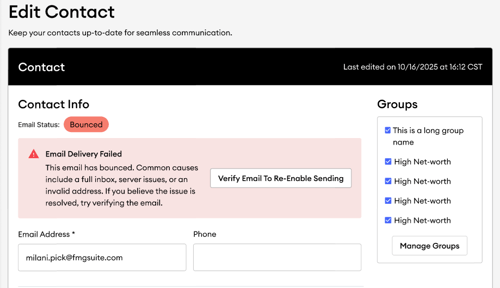
- Email Status Visibility: The status indicator (Subscribed, Unsubscribed, or Bounced) has been moved to the top of the Contact Details page for improved visibility.
- Re-Verification Button: For contacts with a "Bounced" status, a new "Verify Email To Re-Enable Sending" option is now available.
- Groups Display Update: The Groups section now displays only the groups a contact belongs to, improving clarity on the Contact Details page.
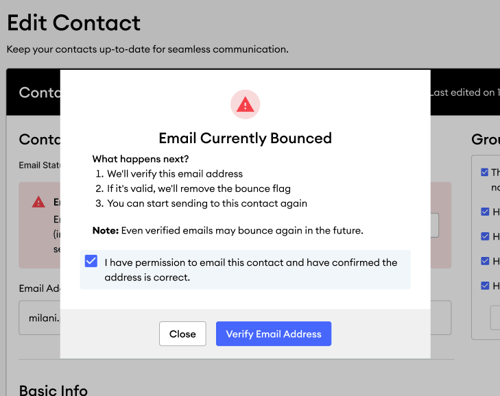
- A user selects “Verify Email to Re-Enable Sending” on a contact with a Bounced status.
- The user confirms they have permission to email the contact and that the address is accurate.
- The request is sent to our email service provider for validation. This step may take a few minutes.
- If the address is verified as valid, the contact’s email status is restored and delivery resumes.
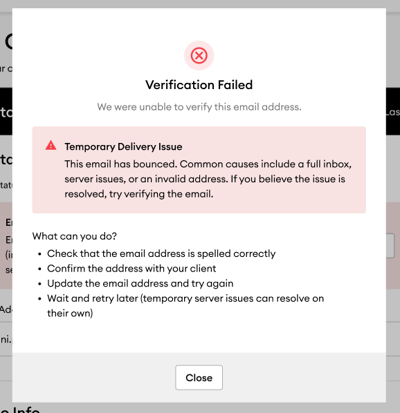
- If the address remains invalid or likely to bounce, the status stays Bounced.
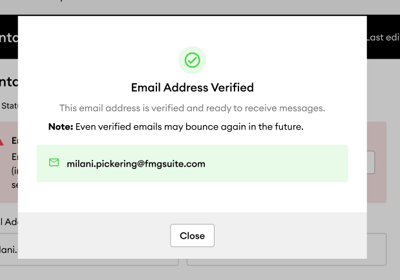
If Mailgun indicates the address is still invalid or likely to bounce, the verification fails, and the contact remains in a bounced status and will not receive emails.
Verifying Bounced Emails Workflow:
For contacts with a Bounced email status, there will be a “Verify Email To Re-Enable Sending” option that allows users to attempt to “unbounce” the affected contact.
Permissions Before Verification:
When “Verify Email To Re-Enable Sending” is selected, users will see a pop-up modal that explains that we will verify the email's validity. If it’s valid, then we will remove the bounce status. Users must check the checkbox that they have permission to email the affected contact and confirm the email address is accurate.
Key Benefits:
-
Restore Critical Communications: Quickly resume delivery to valid contacts that were previously blocked by temporary delivery failures.
-
Improved Deliverability: By validating addresses before reactivation, this workflow reduces false permanent bounces and supports overall deliverability health.
-
User Autonomy: Users can resolve eligible bounced statuses directly within the platform, reducing reliance on Support.
-
CRM Integration Support: This feature is fully compatible with contacts synced from integrated CRMs.
Common Questions:
Can users "unbounce" multiple contacts at once? To ensure safe contact verification and protect sending reputations, this workflow handles only one contact at a time; bulk re-verification is not available.
Does this change how unsubscribes work? No. This process is strictly for technical or temporary bounces. It is not intended for resubscribing contacts who have actively opted out.
What happens if the verification fails? If the email service provider determines the address is still invalid or likely to bounce, the status will remain "Bounced" to protect the platform's sending reputation.
Does this impact bounce rates or deliverability policies? The goal is to reduce “false permanent” bounces by allowing verified addresses back into circulation while still relying on our email service provider verification for protection. Overall, this should improve deliverability by focusing on sending to verified addresses.
Canva "Design An Image" Deprecation – 3/5/26
Canva has discontinued support for the “Design An Image” button integration within our Social Post builder. As a result, this feature is no longer functional and has been removed from the platform for both subscribers and agency publishers. If users would like to create an image using Canva, they can do so through the Canva web app, then download it and upload it to FMG's Social Post builder to share. Or they can Learn More About Using Third‑Party Design Tools to Create Social Media Content.
Please note that this change does not impact Canva-based templates available in FMG, including Social Media assets, eBooks, Presentations, or Event Kits. There is no change to how advisors use FMG Canva templates. Advisors should continue to download the file, edit and export within Canva’s web app, and upload the final version back into the Social Post builder.Contact-Level Removal for Scheduled Emails – 3/5/26
All Marketing Suite users now have a more precise way to remove contacts in scheduled standalone and sequence emails. Previously, removing a contact from a scheduled email required editing the entire audience selection or contact group. Now, users can remove an individual contact from a scheduled send without altering underlying groups or database records. By eliminating manual workarounds, this update streamlines workflows and reduces the risk of unintended sends. This update does not apply to Automated Marketing emails.
What's Changed?
The Email > Sent and Scheduled page now includes enhanced controls for managing pending sends.
-
Standalone Emails: Remove a single contact from a scheduled send directly within the email’s detailed view.
-
Email Sequences: Remove a contact from a single send or from all remaining scheduled emails within the sequence.
-
No Impact to Contact Records: Removing a contact from a scheduled send does not remove them from the contact database or any assigned groups.
Key Benefits:
-
Improved Efficiency: Eliminates the need to edit audience selections or contact groups to exclude a single recipient.
-
Reduced Risk: Helps prevent unintended sends to specific recipients.
-
Greater Flexibility: Enables last-minute adjustments to large-scale sends (such as “All Contacts”) without disrupting the broader campaign schedule.
Common Questions:
Can users remove a contact from Automated Marketing emails? No. This feature applies only to scheduled standalone emails and email sequences.
Is there a deadline for removing a contact? Yes. Contacts can be removed up to 24 hours before the scheduled send time.
Can this action be reversed? No. If a contact needs to be included again, the email must be rescheduled with that contact in the audience.
Which email statuses support this feature? This option is available only for emails or email sequences in “Scheduled” or “In Review” status.
Home Office Admins: Managing Publisher & Compliance Users – 2/23/26
We’ve added new self-service user management capabilities for home office Publisher and Compliance Admin accounts. Designated members of your firm can now be assigned the new Team Member Management role. This elevated user access enables select admins to add team members, update user details, assign roles, deactivate access, and impersonate users for troubleshooting purposes. With these new self-service controls, your team no longer needs to contact FMG Support for routine access changes, allowing your home office to work more efficiently and resolve issues in real-time.
- Publisher Admins: Gain new tools for team management and role configuration.
- Compliance Admins: Gain enhanced capabilities to manage compliance roles and queues.
- New Grid View:
- Lists all team members
- Search by name, email, and username
- Alphabetical filtering for quick navigation
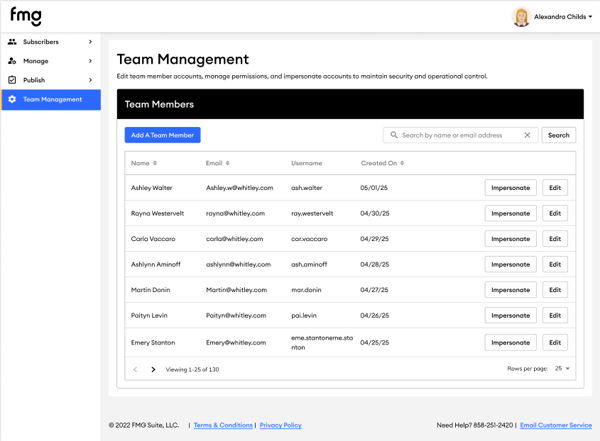
- The Team Member Management Role enables Home Office super users to add, edit, deactivate, and impersonate publisher or compliance users directly.
- Home Office can update core user attributes (name, username, email, and SSO ID, where applicable), along with additional roles that can be restricted by FMG*.
Publisher Admin View Compliance Admin View
.png?width=482&height=877&name=PublisherUserEditor%20(1).png "PublisherUserEditor (1)")
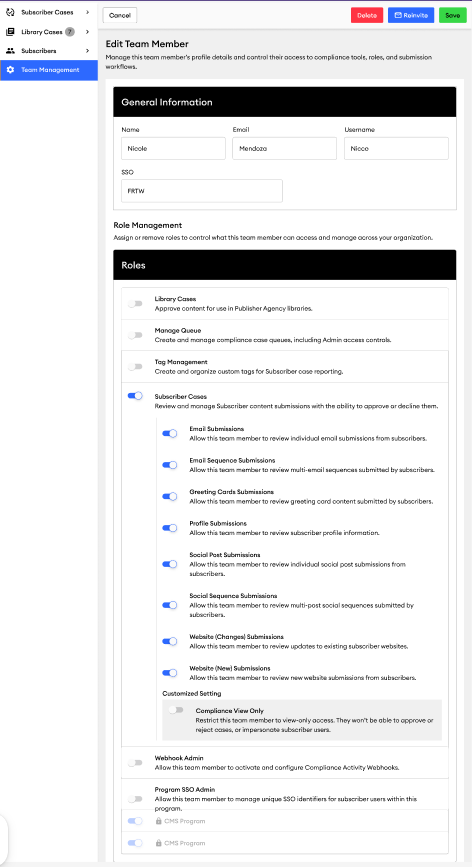
- User-Friendly Role Names: Clear, user-facing names and detailed descriptions replace legacy codes in the interface, providing clear, user-friendly names for roles.
- Configurable Role Availability: Role availability is configurable per program/publisher; only eligible roles will show for each.
- Invite Workflow Improvements: For home offices that use SSO to access FMG, invite emails are no longer sent automatically, preventing confusion for these partners.
How do we designate a Compliance or Publisher Admin with the new Team Member Management role? Please contact Home Office Support, and we will assign the role to your specified Compliance and/or Publisher users.
Can we assign multiple admins these new user management rights? Yes. We can enable the role for multiple users at your firm, based on your specific business needs.
Event Builder: Updates to RSVP Management & Event Promotions – 2/12/26
These updates represent a coordinated enhancement to FMG’s Events tools, designed to improve how events are promoted, managed, and reported—while adding system-level safeguards that support advisor workflows, compliance consistency, and scalability across firms. Enhancements are available to users with access to the Event Builder and event promotional tools; availability varies by subscription configuration and enabled features.
- RSVP enhancements: Users with access to the Event Builder tool now have the following enhancements available:
- Option to Decline an Event: Invitees can now RSVP “No” and are automatically removed from future reminders for that specific event. This option is available on Moonlight and Developer website themes, as well as on Marketing Suite landing pages. Older website themes are not affected.
- Clear RSVP Visibility: The "My Events" page now separates “Yes” and “No” RSVP responses, enabling real-time tracking.
- "Add to Calendar" Integration: Registration confirmation emails now include one-click “Add to Calendar” links for Google, Outlook, and Apple calendars to help improve attendance.
- RSVPs Automatically Add New Contacts: Contacts who RSVP “Yes” are added to the marketing list without needing to select a separate opt-in checkbox, replacing the previous “Keep me posted” option on all event forms.
- Smart RSVP Filtering: The system automatically excludes anyone who has already responded "Yes" or "No" from subsequent promotional sends for that event.
- Event Promotions and Sequence Enhancements:
- Multi-Use Sequences: Users can now use the "Promote Event" option multiple times for the same event to target different audience segments without duplicating sequences.
- Template Resets: Every time a sequence is reused, it resets to the original, unedited template for fresh customization.
- Automated Scheduling Safeguards: The system proactively blocks any promotional emails or social posts from being scheduled after an event date has passed.
RSVP:
Does declining an event unsubscribe the contact from all emails? No. They are only removed from the promotional sequence for that specific event and will continue to receive regular marketing content.
Do "Add to Calendar" links update automatically if the event time changes? No. If an advisor changes the event details in the Marketing Suite, the registrant must manually update their personal calendar entry.
Will this change affect my current CSV downloads? Currently, CSV downloads will continue to reflect confirmed "Yes" RSVPs. Once the "No" functionality is officially launched for invitees, CSV exports will automatically include both "Yes" and "No" responses for comprehensive reporting.Event Promotions:
Will this affect promotional sequences sent before the update? Yes, users can now reuse sequences that were originally sent before this update went live.
How does the system handle test sends? Sending a test to yourself does not count as a "use."
They can test their sequences as needed before deploying them to the primary audience.
Who receives the sequence if a user sends it to a new group? The sequence will be delivered to everyone in the new audience who has not yet RSVP'd. Anyone who has already responded "Yes" or "No" will be automatically filtered out.
Does the post-event block apply to greeting cards? No, the safeguard that prevents scheduling after an event date currently applies only to email and social media promotions, not to event greeting cards.
Can users still send test promotions to themselves? Yes, test sends do not count toward the sequence use and will not affect the ability to promote to their final audience.
Are existing promotions scheduled before this change affected? No, the scheduling safeguard only applies to new content created and scheduled after the feature deployment.
Can users reuse event-related greeting cards? Yes, the multi-use enhancement does apply to greeting card event promotions.
Can users reuse promotional sequences that were sent before these updates? Yes. The multi-use functionality is backward-compatible and applies to existing events in the dashboard.
Does the scheduling safeguard apply to greeting cards? The block on post-event scheduling currently applies to email and social sequences. Event-related greeting cards still follow their traditional mailing logic.
Acquisition Announcement: Testimonial IQ → FMG Testimonials - 2/4/26
FMG has acquired Testimonial iQ, now offered as FMG Testimonials — a testimonial and review management platform built specifically for regulated wealth management firms.
FMG Testimonials was designed to help advisors request reviews and referrals in a systematic, compliant way, while giving Home Offices a scalable framework for defining, enforcing, and overseeing how testimonials are collected, reviewed, and displayed.
For advisors to use FMG Testimonials, it must be approved by the home office. There is no additional cost for Home Offices to use the compliance dashboard. Simply reach out to homeofficesuccess@fmgsuite.com if you are interested in approving the platform.
-
Local search rankings
-
AI-driven discovery and recommendations
-
Trust and credibility before a prospect ever visits a website
Advisors are already being surfaced — or excluded — by these systems. Without a governed approach, firms risk unmanaged behavior, inconsistent visibility, and lost control over a high-impact marketing channel.
-
FMG Testimonials is not enabled for advisors
-
Advisors cannot purchase or use the product without firm approval
-
No testimonial workflows, permissions, or compliance rules have changed
-
All existing FMG compliance review processes remain in place
This ensures firms can evaluate the platform before any advisor activity occurs.
-
We will add an email template to the FMG Content library for advisors who are approved to use Testimonials and want to send requests through their FMG dashboard.
-
All outreach follows the Home Office's existing compliance workflows.
-
Nothing can be sent or published without explicit approval from the Home Office.
-
Inconsistent advisor behavior
-
Local visibility gaps across branches
- Workarounds outside firm oversight
-
Replace informal activity with a governed process
-
Support advisor growth without sacrificing control
-
Enforce policy through the workflow, not after the fact
-
There is no cost to evaluate the platform
-
There is no cost for a customizable Home Office compliance dashboard
-
Define and enforce testimonial rules up front for all advisors
-
Centralize oversight, audit logs, and approvals
-
Turn testimonials into an approved channel — instead of prohibiting them
-
Compliant collection of testimonials and Google Reviews
-
Built-in disclosure handling and approval workflows
-
Survey-based client feedback and referrals
-
Centralized management of testimonials as a regulated digital asset
The platform was designed to support enterprise oversight while allowing firms to define how testimonials may be collected, reviewed, and displayed in accordance with internal policy. Here is a quick demo.
Requested Feature Update: Scheduled Content Visibility - 2/3/26
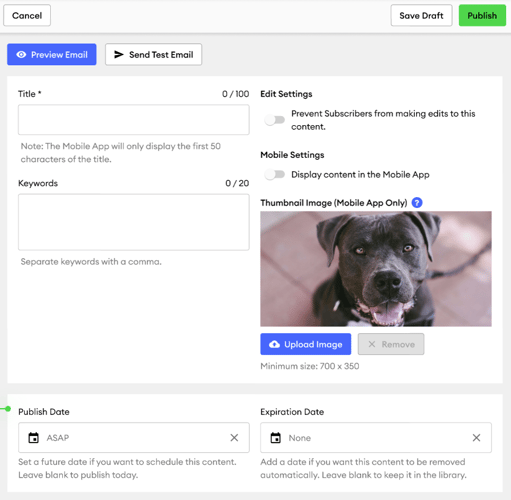
This upcoming enhancement to the Publisher Admin workflow is designed to automate your content lifecycle. This new feature lets you pre-schedule exactly when emails and social posts become visible to your subscribers, as well as when they should be automatically retired from the Content Library. By eliminating the need for manual, time-specific triggers, your team can coordinate complex campaigns across time zones with greater precision and reduced operational overhead.
- Automated Launch: Set a future date and time for content to appear in subscriber libraries.
- Automatic Expiration: Define a specific time for content to be removed from the Content Library to ensure only timely information remains available.
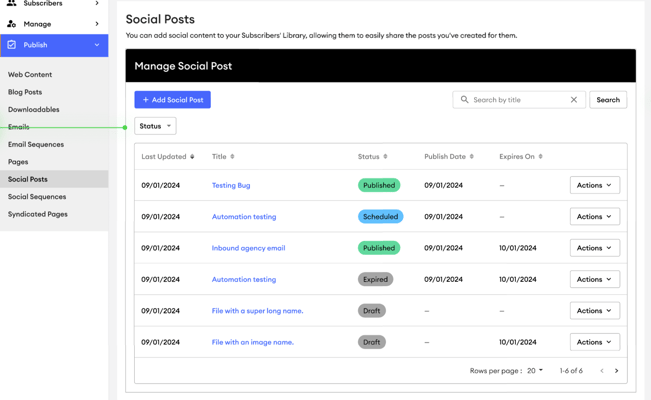
- Grid UI Enhancements: The content management grid will include a new column to show status for Draft, Scheduled, Published, Hidden, and Expired.
- Centralized Actions: The "Show" column will be removed and replaced by a streamlined Actions drop-down menu that lets you manage content unpublishing (hiding) and republishing.
-
New "Publish Date" and “Expiration Date” fields are being added to publisher content editors for supported content types:
-
Emails
-
Email Sequences
-
Social Posts
-
Social Sequences
-
-
Built-in date and time picker allows publishers to set precise future publication and expiration schedules.
-
These fields are optional and empty by default; when clicked, they open with the current date and time.
-
Publishers can modify or cancel scheduled dates before content goes live.
-
Timezone is based on the publisher user's timezone settings.
-
Last Updated: The last date the content was updated.
-
Title: Click the title to view the content.
-
Status: The "Status" column shows the status of the content piece in Content Libraries:
-
New Status Scheduled: Content is scheduled to display in Content Libraries on a specific date. This content can still be edited.
-
Please note that this status does not indicate that the content has been approved by compliance yet.
-
-
-
-
New Status Expired: Content no longer displays in Content Libraries
-
-
Publish Date: The "Publish Date" column shows the scheduled dates when content should appear in subscriber libraries.
-
Expires On: The “Expires On” column displays whether content will be automatically removed from libraries on a specified date.
-
Columns support ascending and descending sorting to organize content by publish timeline.
-
-
Preview: See how the content will appear to subscribers.
-
Edit: Edit the content.
-
Delete: Completely remove the content from the grid and Content Library.
Additional actions may appear based on content type, such as Duplicate (Emails only) or Share as an automation (Social Posts only, if enabled).
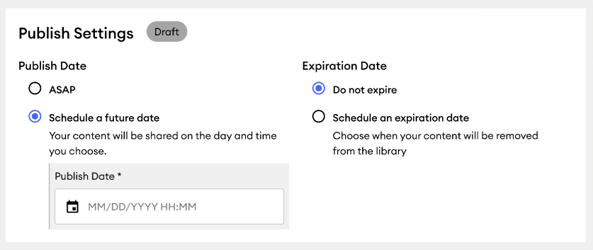
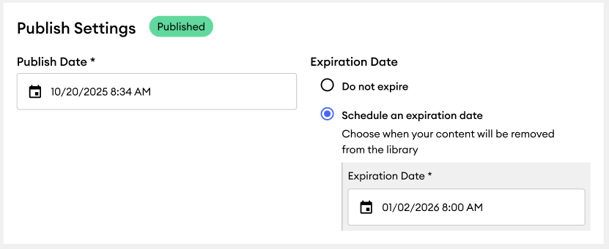
Status Chips for Content State: Visual status chips appear next to “publish settings” in the content editor to instantly show a content item’s state (Draft, Scheduled, Published, Hidden, Expired). These chips dynamically update as the user makes changes, allowing publishers to track the current status without leaving the settings page.
Common Questions:
Can Publisher admin users schedule multiple pieces of content at once (bulk scheduling)?
No. Bulk scheduling functionality is not available in this release. You'll need to set scheduled publish dates individually for each piece of content. If you have a large number of items to schedule, you'll need to edit each one separately through the content editor.
If Compliance hasn't approved the content by the scheduled publish date, what happens? The content will remain hidden from subscribers until it is approved by compliance. Once Compliance approval is granted (even if after the scheduled date), the content becomes immediately visible to your subscribers. This ensures all content meets regulatory standards before your audience can access it.
Will this update work on the Content Library in the FMG Mobile App for subscribers? Yes, for subscribers, scheduled content remains hidden in the mobile app Content Library until the scheduled date/time, then appears automatically just like on the web platform.
What will happen to the “Show” column on the content Publish pages for Emails, Email Sequences, Social Posts, and Social Sequences? The "Show" column was globally removed from the grid on December 16, 2025, and is now available as an option under the "Actions" menu labeled “Unpublish (Hide from Subscribers),” provided the content's current status is not "Draft." The "Unpublish (Hide from Subscribers)" action updates the status to "Hidden," while the "Republish (Show to Subscribers)" action updates it to "Published.”
What content types will NOT be supported for scheduling? Downloadables, Syndicated Pages, Syndicated Blog Posts, Web Content, and Automations.
Will scheduled publish dates appear in the compliance workspace? No. Scheduled publication dates will not be displayed in the compliance workspace interface or appear as case notes. This functionality may be added in future updates. Compliance users will continue to see scheduled content immediately in their review queues, regardless of the scheduled publish date.
Improving Email Deliverability with Updated Default Sending Settings - 1/15/26
To improve email deliverability, we’ve updated default email settings for FMG users who have not yet completed the recommended SPF Verification process. These changes were made to adhere to stricter spam protection standards set by major email providers, including Gmail, Yahoo, and AOL. Please note that this update does not change our recommendation that accounts verify their domain for email sending. Verifying the email domain enhances email deliverability and helps with consistency in branding. Learn more in our help article: SPF Verification for Email Delivery.
What's Changed?
- Before the update, the email appeared to come from one domain, but it was actually sent through FMG’s sending infrastructure. Even though the email was legitimate, this mismatch made it harder for providers like Gmail and Yahoo to trust the message, thereby increasing the likelihood that it would be sent to spam.
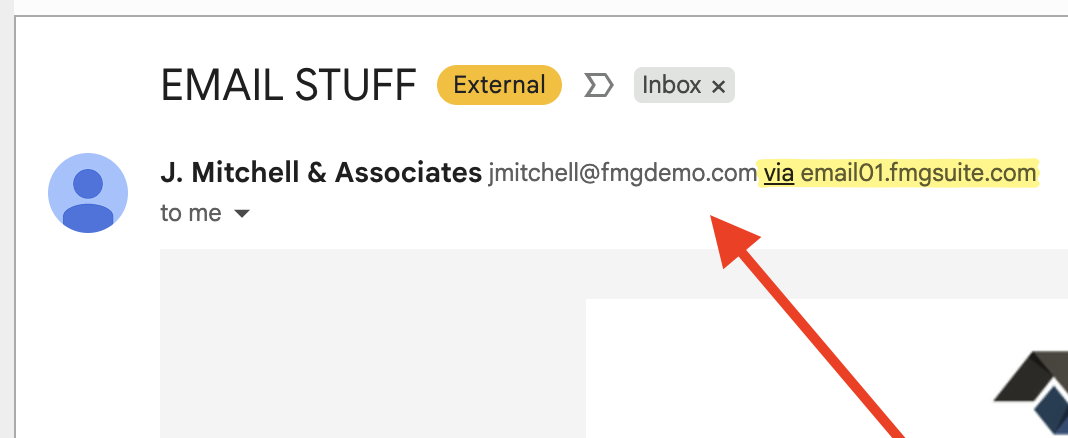
- Now, the visible “From” address matches the actual sending domain, allowing email providers to verify the sender immediately and thereby significantly improving the chances that emails reach recipients’ inboxes.
- Replies still go directly to the user’s primary email address, and no action is required for users who have already verified their domain.
What Users Will See:
Users who have not completed the SPF Verification process will notice changes in the "From" email address:
- The "From" email will now align with the "Sender" domain.
- The “From” address will no longer display the user’s primary email address and will instead reflect FMG’s default sending format.
Before Example:
Example of NEW Formatting now live:
Key Benefits:
- Improved Deliverability: Aligning domains is a critical element of DMARC compliance, which major email providers use to verify the legitimacy of a sender.
- Enhanced Security: This change helps protect against email spoofing and phishing attacks, ensuring the integrity of users’ important communications.
- Stronger Sending Reputation: By meeting stricter industry standards, we strengthen the overall sending reputation of the platform for all users.
- Minimized Friction: For users without their own domains, this automated alignment ensures their emails reach recipients without requiring complex technical setup.
Common Questions:
Will users who have already completed the SPF Verification process be affected? No, users who have already verified their custom domains will not see any changes to their email configuration.
Will this update change the user’s reply-to email address? The "Reply-To" address will remain the user’s primary email address, ensuring all client responses are still directed to the intended recipient.
What did email addresses look like previously for unverified user? These unverified accounts experienced a domain misalignment where the "From" address (e.g., username@customdomain.com) did not match the "Sender" domain (email01.fmgsuite.com).
What is DMARC alignment, and why is it important? DMARC (Domain-based Message Authentication, Reporting, and Conformance) is a protocol that ensures the domain in the "From" header matches the domain used for SPF or DKIM authentication. Alignment is crucial for preventing spoofing and improving the likelihood that emails reach the inbox rather than the spam folder.
Why do users’ campaign emails now show a different "From" address? This change was implemented to comply with stricter spam protections from providers like Gmail, Yahoo, and AOL. By adjusting the sender to align with these requirements, we help ensure users’ timely communications reach their customers.
What if users want their emails to come directly from their custom domain? We still strongly recommend that users verify their custom domains for optimal deliverability and branding. Users can do this by following the SPF Verification process within their account settings.
More information: SPF Verification for Email Delivery.
Publisher Admin: Updated Menu Order & Standardized Footer Contact Information - 1/15/26
The Publisher Admin experience has been updated to streamline content creation workflows and ensure consistent routing of support inquiries. The “Publish” navigation has been reorganized to reflect a logical publishing flow, and all Publisher footers now display standardized Home Office Support contact information.
What's Changed?
Updated “Publish” Menu Order
To better reflect how content is typically created and distributed, the “Publish” menu has been reordered to prioritize high-frequency marketing activities and group related content types together.
The optimized "Publish" menu order is as follows:
- Emails
- Email Sequences
- Social Posts
- Social Sequences
- Downloadables
- Web Content
- Syndicated Pages
- Blog Posts
.png?width=500&height=500&name=email%20save%20as%20template%20(5).png "email save as template (5)")
Standardized Publisher Footer Contact Info
All Publisher footers have been updated to the Home Office Support contact information, ensuring that questions are routed correctly from the start and resolved more efficiently.
homeofficesupport@fmgsuite.com
Common Questions:
Has the publisher user’s permissions changed with this update? No. User permissions and role-based visibility remain unchanged. While the order of items in the “Publish” menu has been updated, existing role-based access still applies. If certain content types are restricted for a user’s role, those items will remain hidden, and the remaining options will appear in the new standardized order.Why did the order of the "Publish" menu change? We reorganized the menu to better reflect the natural content creation and publishing process. By grouping similar items (like Emails and Social) together at the top, we help users find what they need more efficiently, reducing the time spent navigating the side menu.
How does the footer change affect publisher users' support experience? The updated contact information will ensure Publisher users are able to contact Home Office Support directly. This helps reduce misrouted requests and ensures Publisher-specific questions are handled by the appropriate support team from the start.
New Spanish-language Automated Content - 2/26/26
Marketing Suite Premium users now have Spanish-language automated content through the new Spanish Premium Agency. This update directly addresses the growing demand for multilingual resources and provides a broader range of content for users. With this update, users can streamline their communication efforts and eliminate the need for manual translations. This update includes translations of the Monthly Market Insights (MMI) and Quarterly Market Insights (QMI), as well as limited holiday messages. Compliance admins must approve Spanish content when it is scheduled, either manually or automatically, for it to be sent successfully. Home offices can opt out of the Spanish Premium Agency, ultimately hiding it from their subscribers. If you would like to opt out, reach out to support at homeofficesupport@fmgsuite.com.
What's Changing?
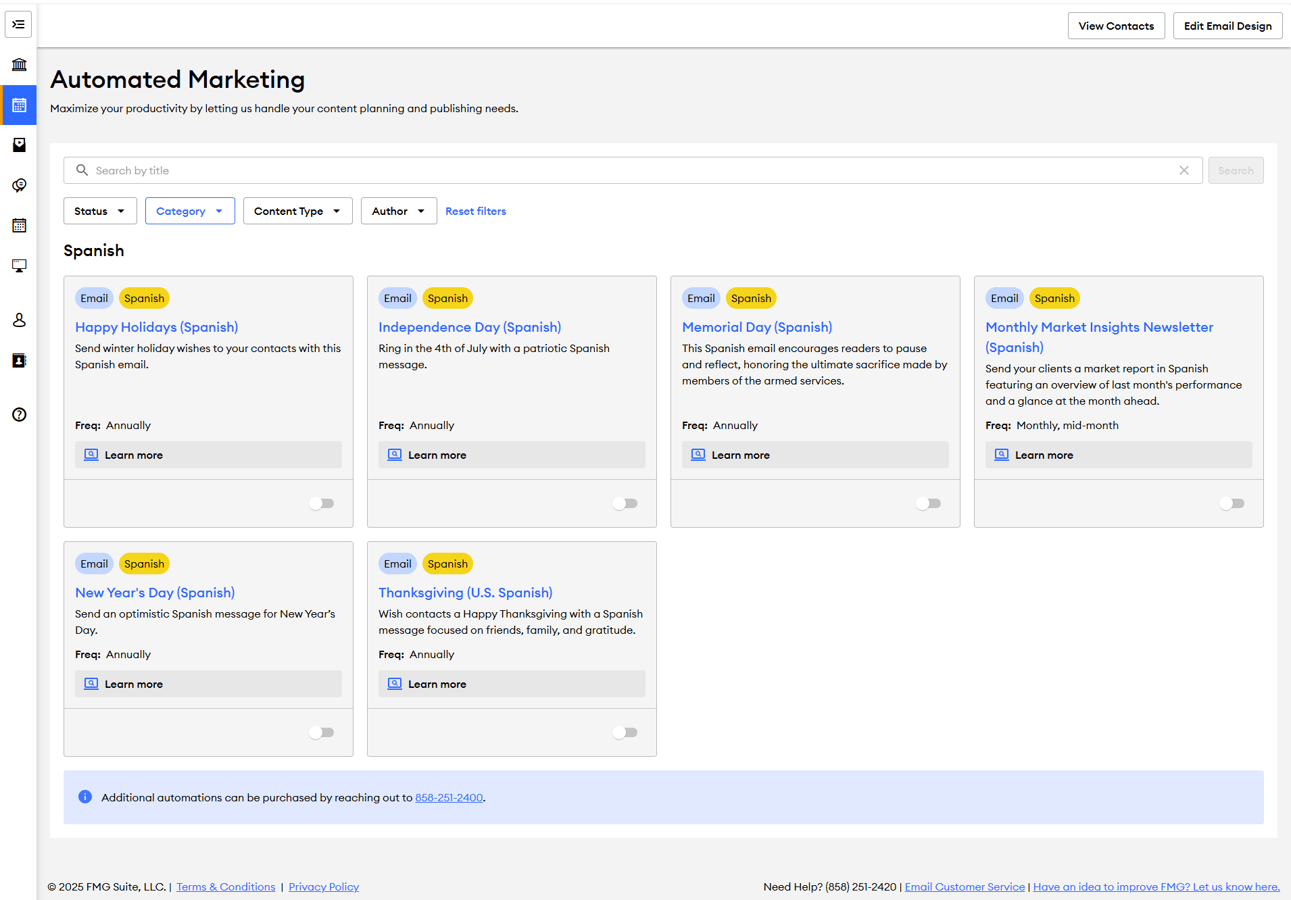
Users can now utilize new automated marketing emails and holiday messages in Spanish, available under the "Automated Marketing" tab in the "Spanish" category.
Automations Available in Spanish:
- Monthly Market Insights (MMI) and Quarterly Market Insights (QMI)
- Five holidays:
- Memorial Day
- Independence Day
- Thanksgiving
- Happy Holidays
- New Year's Day
Key Benefits:
- Enhanced Engagement: Connect more effectively with Spanish-speaking clients through tailored content.
- Efficiency: Reduce the time spent on creating custom Spanish content.
- Broad Reach: Expand your market outreach by catering to a multilingual audience.
Common Questions:
How do users find Spanish content? Spanish content is available as Automated Marketing emails and standalone emails in the Content Library. Here’s how to locate Spanish content in these places:- Automated Marketing: In a user's FMG account, navigate to the “Automated Marketing” tab located in the left menu. Then, search “Spanish” in the search bar to quickly find all the Spanish automations.
- Content Library: To locate the Spanish automations as standalone emails in the Content Library, apply the “FMG: Premium Spanish” author filter to see all Spanish content.
- These emails are typically viewable in the Content Library one day before they are scheduled to be sent via automation.
Can users edit the Spanish content before it is sent? Yes. Once the Spanish campaign email is available in their Content Library as a standalone email, they can open it in the Email Builder to customize the content and send it manually, rather than using the automated campaign. Please remember that compliance teams must approve the content before it is sent, and ensure the automated version is turned off to prevent duplicate messages.
Is the automated Spanish version of Monthly Market Insights sent at a different time than the English version? The Spanish MMI automated emails are typically sent a few days apart, allowing us time to translate the English version into Spanish. Edits to the English MMI are made up until it’s published, and the final version will be translated into Spanish accordingly.
Does the subscriber email disclosure automatically translate to Spanish when using Spanish automations? Disclosures specific to each content piece are translated and included in the Spanish email content. However, there is no way to automatically switch the subscriber email disclosure from its usual English version to a Spanish version.
When Spanish content is available for compliance review, does it appear in Spanish? What if we don’t have a Spanish speaker in our compliance department? Yes, the Spanish campaigns appear in Spanish for compliance review, including the translated disclosures. If your compliance team does not have a Spanish speaker, it is recommended to double-check the English version of the automation. The Spanish MMI/QMI emails will be the same report and details in an email format, without the video.
Removing Contacts from Scheduled Emails - Available 12/8/25
Marketing Suite users can now easily remove individual contacts from emails that are scheduled or in review—directly from the Email > Sent and Scheduled page in their FMG admin. This enhancement is based directly on user feedback and eliminates the need for the previous, multi-step workaround. With this update, users can exclude a contact from an upcoming standalone email without adjusting group membership or modifying their contact record. Note: This update does not apply to Automated Marketing emails.
What's Changing?
Users can now remove an individual contact from a scheduled email send without having to edit the entire audience group. This option is available in the detailed view of any email with a status of 'Scheduled' or 'In Review'.
To remove a contact from an upcoming scheduled email:
- Go to Email > Sent and Scheduled and locate an email marked Scheduled or In Review.
- Click the email title to open the detailed view and recipient list.
- Find the contact you want to remove.
- In that contact’s row, open the Actions dropdown and select Remove from Send.
- Confirm your selection in the modal dialog that appears.
This action affects only the selected scheduled email and does not impact group membership or the contact record.
Key Benefits:
- More control: Users can selectively remove recipients without modifying groups or audience selections.
- Time-Saving: Eliminates the need to edit groups, reschedule emails, or re-add contacts afterward.
- Error Reduction: Decreases the likelihood of accidental sends, particularly in large group distributions.

Common Questions:
Can users remove individual contacts from an upcoming scheduled automated email? No, this feature is not available for automated emails. It applies only to emails with "Scheduled" or "In Review" statuses.
Will removing a contact from a scheduled email also remove them from the group? No, the contact will remain in their original groups and contact lists.
Can this action be reversed after it is removed? Not directly. You would need to reschedule the email to include the contact again.
Is there a time limit for removing a contact for a scheduled email? Yes, you can only remove a contact up to 24 hours before the email is set to be sent.
Can users remove a contact from an email sequence? Yes, however, this action will not remove the contact from all scheduled emails in the email sequence. The contact would need to be manually removed from each individual email in the sequence.
Website Update: Mobile Phone Number Support for Team Member Profiles - Available 11/20/25
We’ve updated the Website Team Member editor to support both office and mobile phone numbers—along with a new “voice-only” option that helps Home Offices manage texting restrictions for all website subscribers. This enhancement gives advisors more flexibility while maintaining compliance oversight.
What Advisors Can Do:
We’ve enhanced the Team Member website editor to support two distinct phone fields: Office Phone and Mobile Phone, with an optional “voice-only” flag for mobile numbers to address compliance concerns around text messaging.
Key Benefits:
This update modernizes the contact display on advisor websites, providing clearer controls for Home Offices that restrict texting.
Change Overview:
This update includes several enhancements to the Website > Team Member editor:
- The existing "Phone" field has been relabeled "Office Phone."
- A new "Mobile Phone" field has been added.
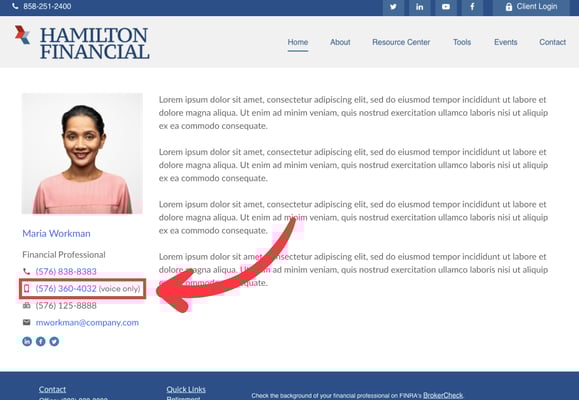
- Team Members can now flag their mobile number as “Voice only,” which discourages website visitors from sending text messages, as a visible mobile number may otherwise be interpreted as text-enabled.
- vCard downloads for Team Members now includes the new mobile phone field. If "Voice only" is checked, the vCard will display the number as "voice only.”
How It Works:
- When editing or adding Team Member profiles on the Website > Team Member page, users can see "Office Phone" and "Mobile Phone" fields.
Team Member Editor Example:
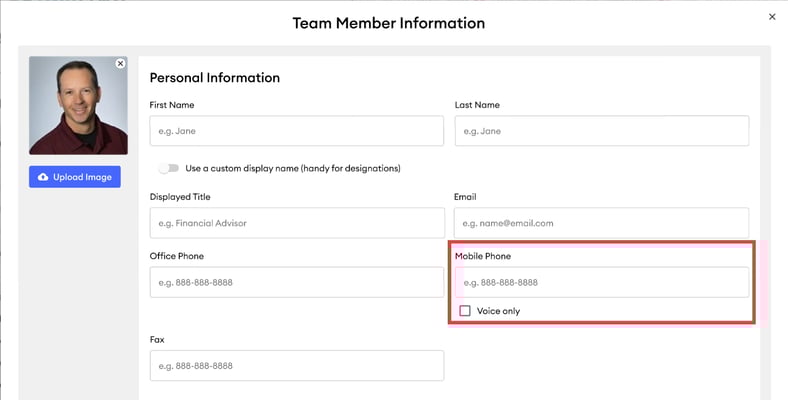
2. For mobile numbers, there’s a checkbox to mark the number as "voice only", which is displayed on the website and vCard outputs.
Website Team Member “Read More” View Example:
3. After making edits, users must publish their changes for compliance review. Compliance can reject changes when necessary.
Common Questions:
Can users now have both their office and mobile numbers listed on a team member profile? Yes! The platform now supports distinct fields for office and mobile phone numbers. Follow the steps in this help article to add mobile numbers to Team Members: How to Add and Manage Team Members on Your Website.
Is this update configurable per program? No, this update is global for all website subscribers, and users are able to flag mobile phone numbers as “voice-only.” Compliance can reject Team Member profiles that do not meet compliance requirements.
Marketing Suite | Calendar View on Marketing Calendar - 11/4/2025
FMG users (advisors) now have a new Calendar View in their Marketing Calendar. This top-requested enhancement streamlines the process for advisors to plan, visualize, and schedule their marketing campaigns. This update is designed to provide advisors with a clearer, more intuitive way to plan and schedule marketing activities, making it easier to identify gaps, balance messaging throughout the month, and take action more quickly. All Marketing Suite users can now see this automatically in their calendar view.
What's Changing?
The Marketing Calendar now features two views:
- Calendar View (New): A visual, interactive layout lets users plan their marketing at a glance.
- List View (Existing): The familiar, detailed list remains available below the calendar.
Users can toggle between views seamlessly, without losing functionality or disrupting workflows.
Key Benefits:
- Simplified Planning: Advisors can visually map out campaigns, spot scheduling gaps, and balance content across the month at a glance.
- Stronger Marketing Consistency: Clearer visibility into timing helps ensure even distribution of communications—supporting firm-wide marketing strategies.
- Faster Execution: Advisors can click any date to add or review content in seconds, reducing friction and support needs.
- No Configuration Required: The feature is automatically available to all users with no setup, training, or compliance changes needed.
%20(1).png?width=2000&height=913&name=image%20(98)%20(1).png "image (98) (1)")
Common Questions:
Will this change affect the Marketing Calendar view on the Mobile App? We are not updating the Mobile App Marketing Calendar with the Calendar View at this time.
Can users select to see only the Calendar View or just the List View? Both views are always visible; there is currently no option to hide either one.
Will this change affect how users' content is sent or reviewed? No, this is a visual and usability update only. All sending, reviewing, and compliance workflows will remain unchanged.
How do users add new content to an empty date? Simply click the “Add content” link on any empty date to schedule new items from users' Content Library quickly.
Looking for Customer-Facing Release Updates?
Check out our Suite New Releases page linked below.
Tip: You can always find the link to this page on the main page of our Knowledge Center (upper right > New Releases).